> ## Documentation Index
> Fetch the complete documentation index at: https://noradocs.solomontsao.com/llms.txt
> Use this file to discover all available pages before exploring further.
# Llm providers
# LLM providers and API key management
> Learn which LLM providers Nora supports, how your API keys are encrypted with AES-256-GCM, and how to sync credentials to running agent runtimes.
Nora centralizes your LLM provider API keys so you do not have to configure them individually on each agent. You save a key once in Settings, and Nora stores it with AES-256-GCM encryption. When you are ready to use a provider with a running agent, you sync the keys from the dashboard — Nora pushes the relevant credentials to the agent's runtime environment without exposing them in plaintext anywhere in the UI.
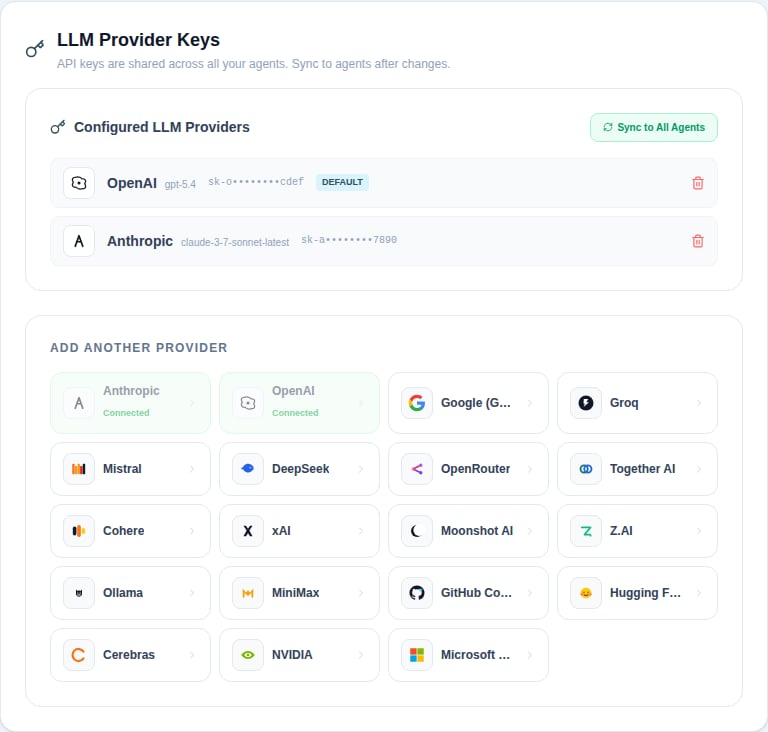 ## Supported providers
Nora supports the following LLM providers. You can save a key for any of them from **Settings → Providers**.
| Provider | ID |
| -------------------------------- | ------------------- |
| Anthropic | `anthropic` |
| OpenAI | `openai` |
| Google AI | `google` |
| Groq | `groq` |
| Mistral AI | `mistral` |
| DeepSeek | `deepseek` |
| OpenRouter | `openrouter` |
| Together AI | `together` |
| Cohere | `cohere` |
| xAI | `xai` |
| Moonshot AI | `moonshot` |
| Z.AI | `zai` |
| Ollama | `ollama` |
| MiniMax | `minimax` |
| GitHub Copilot | `github-copilot` |
| Hugging Face | `huggingface` |
| Cerebras | `cerebras` |
| NVIDIA | `nvidia` |
| Microsoft Foundry | `microsoft-foundry` |
| Demo (built-in, no key required) | `demo` |
The **`demo`** provider is a zero-key, deterministic built-in stub served by your own control
plane (model `nora-demo-1`, `requiresApiKey: false`). Unlike every other provider it needs no API
key — Nora derives its token server-side — and it is listed last in the picker so key-based
providers appear first. On installations with the local Docker target enabled, activate it through
**Launch local Docker demo** on the Getting Started page (see the [quickstart](/quickstart)).
Kubernetes-only installations do not expose that one-click activation path and should start with a
configured model provider.
**Microsoft Foundry** is a model gateway, not a single-vendor provider. One Foundry deployment gives you access to a multi-vendor catalog — OpenAI (`gpt-5.5`, `o3`), Microsoft (`Phi-4`), Meta (`Meta-Llama-3.1-405B-Instruct`), Mistral (`Mistral-Large-2411`, `Codestral-2501`), DeepSeek (`DeepSeek-V3`, `DeepSeek-R1`), Cohere, AI21, and more. The model id you save in Nora is your **Foundry deployment name** — operator-defined when you create the deployment, not a fixed vendor model id. For example, if the Azure deployment is named `gpt-5.5-1`, save `gpt-5.5-1`; Nora carries that exact deployment name into OpenClaw and Hermes runtime config.
Foundry endpoints are **per-resource**, so Nora requires you to provide a Base URL alongside the API key. The wizard's URL field accepts both shapes:
* `https://.openai.azure.com/openai/v1/` — OpenAI v1 GA path (recommended; no `api-version` needed)
* `https://.services.ai.azure.com/openai/v1/` — also accepted
Auth supports two modes — **API key** (sent via `api-key:` header on classic paths or `Authorization: Bearer` on v1 GA) and **Microsoft Entra ID** (keyless bearer token with scope `https://ai.azure.com/.default`). Nora currently supports the API-key path; Entra ID keyless auth is on the roadmap. See [Microsoft Foundry endpoints](https://learn.microsoft.com/en-us/azure/ai-foundry/foundry-models/concepts/endpoints) for the full reference.
`https://models.inference.ai.azure.com` is the **GitHub Models** dev endpoint (free tier, GitHub PAT auth) — not a generic shared Foundry URL. For production, use your per-resource endpoint.
## How key storage works
When you save an API key, Nora encrypts it immediately using AES-256-GCM before writing it to the database. The raw key is never stored in plaintext and is never returned to the UI. When you view your saved providers in Settings, Nora shows a masked version of each key — the first four and last four characters only.
Your `ENCRYPTION_KEY` environment variable is required for key storage to work. If it is not set,
Nora will refuse to save provider credentials. Generate one with `openssl rand -hex 32`.
## Syncing keys to agents
Saving a key in Nora does not automatically push it to your running agents. You sync keys explicitly from the agent detail page when you want to make them available to a specific agent's runtime.
Go to **Settings → Providers**, choose a provider, and paste your API key. Nora encrypts and saves it.
Navigate to the agent you want to configure. The agent must be in `running` status for a sync to
succeed.
Click **Sync keys** on the agent detail page. Nora decrypts your stored keys and pushes them to the agent's runtime environment.
## Default provider
The first provider key you save is automatically marked as your default provider. When you have multiple providers configured, you can change the default from **Settings → Providers** — only one provider can be the default at a time. The default provider is used by agents that do not have a specific provider configured.
If you are just getting started, save one key from Anthropic, OpenAI, or Google AI and deploy your
first agent. You can add more providers at any time without redeploying your agents.
## Provider key safety
* Keys are stored encrypted at rest (AES-256-GCM).
* Keys are masked in the UI — you will never see a raw key after saving it.
* Keys are scoped to your account and are never shared across users.
* Deleting a provider removes the encrypted key record from the database.
Treat your provider API keys with the same care as passwords. If a key is compromised, revoke it
with the provider directly and save a new key in Nora.
## Related concepts
Deploy and manage agent runtimes.
Learn about sandbox types and the OpenClaw runtime.
## Supported providers
Nora supports the following LLM providers. You can save a key for any of them from **Settings → Providers**.
| Provider | ID |
| -------------------------------- | ------------------- |
| Anthropic | `anthropic` |
| OpenAI | `openai` |
| Google AI | `google` |
| Groq | `groq` |
| Mistral AI | `mistral` |
| DeepSeek | `deepseek` |
| OpenRouter | `openrouter` |
| Together AI | `together` |
| Cohere | `cohere` |
| xAI | `xai` |
| Moonshot AI | `moonshot` |
| Z.AI | `zai` |
| Ollama | `ollama` |
| MiniMax | `minimax` |
| GitHub Copilot | `github-copilot` |
| Hugging Face | `huggingface` |
| Cerebras | `cerebras` |
| NVIDIA | `nvidia` |
| Microsoft Foundry | `microsoft-foundry` |
| Demo (built-in, no key required) | `demo` |
The **`demo`** provider is a zero-key, deterministic built-in stub served by your own control
plane (model `nora-demo-1`, `requiresApiKey: false`). Unlike every other provider it needs no API
key — Nora derives its token server-side — and it is listed last in the picker so key-based
providers appear first. On installations with the local Docker target enabled, activate it through
**Launch local Docker demo** on the Getting Started page (see the [quickstart](/quickstart)).
Kubernetes-only installations do not expose that one-click activation path and should start with a
configured model provider.
**Microsoft Foundry** is a model gateway, not a single-vendor provider. One Foundry deployment gives you access to a multi-vendor catalog — OpenAI (`gpt-5.5`, `o3`), Microsoft (`Phi-4`), Meta (`Meta-Llama-3.1-405B-Instruct`), Mistral (`Mistral-Large-2411`, `Codestral-2501`), DeepSeek (`DeepSeek-V3`, `DeepSeek-R1`), Cohere, AI21, and more. The model id you save in Nora is your **Foundry deployment name** — operator-defined when you create the deployment, not a fixed vendor model id. For example, if the Azure deployment is named `gpt-5.5-1`, save `gpt-5.5-1`; Nora carries that exact deployment name into OpenClaw and Hermes runtime config.
Foundry endpoints are **per-resource**, so Nora requires you to provide a Base URL alongside the API key. The wizard's URL field accepts both shapes:
* `https://.openai.azure.com/openai/v1/` — OpenAI v1 GA path (recommended; no `api-version` needed)
* `https://.services.ai.azure.com/openai/v1/` — also accepted
Auth supports two modes — **API key** (sent via `api-key:` header on classic paths or `Authorization: Bearer` on v1 GA) and **Microsoft Entra ID** (keyless bearer token with scope `https://ai.azure.com/.default`). Nora currently supports the API-key path; Entra ID keyless auth is on the roadmap. See [Microsoft Foundry endpoints](https://learn.microsoft.com/en-us/azure/ai-foundry/foundry-models/concepts/endpoints) for the full reference.
`https://models.inference.ai.azure.com` is the **GitHub Models** dev endpoint (free tier, GitHub PAT auth) — not a generic shared Foundry URL. For production, use your per-resource endpoint.
## How key storage works
When you save an API key, Nora encrypts it immediately using AES-256-GCM before writing it to the database. The raw key is never stored in plaintext and is never returned to the UI. When you view your saved providers in Settings, Nora shows a masked version of each key — the first four and last four characters only.
Your `ENCRYPTION_KEY` environment variable is required for key storage to work. If it is not set,
Nora will refuse to save provider credentials. Generate one with `openssl rand -hex 32`.
## Syncing keys to agents
Saving a key in Nora does not automatically push it to your running agents. You sync keys explicitly from the agent detail page when you want to make them available to a specific agent's runtime.
Go to **Settings → Providers**, choose a provider, and paste your API key. Nora encrypts and saves it.
Navigate to the agent you want to configure. The agent must be in `running` status for a sync to
succeed.
Click **Sync keys** on the agent detail page. Nora decrypts your stored keys and pushes them to the agent's runtime environment.
## Default provider
The first provider key you save is automatically marked as your default provider. When you have multiple providers configured, you can change the default from **Settings → Providers** — only one provider can be the default at a time. The default provider is used by agents that do not have a specific provider configured.
If you are just getting started, save one key from Anthropic, OpenAI, or Google AI and deploy your
first agent. You can add more providers at any time without redeploying your agents.
## Provider key safety
* Keys are stored encrypted at rest (AES-256-GCM).
* Keys are masked in the UI — you will never see a raw key after saving it.
* Keys are scoped to your account and are never shared across users.
* Deleting a provider removes the encrypted key record from the database.
Treat your provider API keys with the same care as passwords. If a key is compromised, revoke it
with the provider directly and save a new key in Nora.
## Related concepts
Deploy and manage agent runtimes.
Learn about sandbox types and the OpenClaw runtime.