> ## Documentation Index
> Fetch the complete documentation index at: https://noradocs.solomontsao.com/llms.txt
> Use this file to discover all available pages before exploring further.
# Agent hub
# Publish and install Agent Hub templates
> Convert an existing agent into a reusable Agent Hub listing, optionally share it to the community catalog, and install listings into any workspace with one click.
Agent Hub turns a working agent into a reusable template. This guide covers the end-to-end flow: install a listing, publish your own, share to the community catalog, and roll out a new version.
## What Agent Hub does
Agent Hub is the catalog of ready-to-run agent templates inside Nora. Instead of configuring an agent from scratch — runtime, image, environment, files, and integrations — you install a **listing** that captures all of it, and Nora materializes a working agent in one click.
But the templates are only half the point. **Agent Hub is a shareable hub, not just a static template store.** Once an operator gets an agent working, they can publish it as a listing and share it — and that sharing works at three different reach levels:
* **Reuse it yourself** — publish privately so anyone in your own workspace(s) can install the same agent with one click.
* **Share with the community** — push the listing to the public upstream hub (`https://nora.solomontsao.com`), where, once approved, it appears in every Nora instance's **Community** filter.
* **Run your own company hub** — self-hosters can point `NORA_AGENT_HUB_URL` at their **own** Agent Hub instead of the public one. Then "community" sharing stays entirely inside the company: every operator publishes to and installs from a private, org-internal catalog — the same reusable, shareable workflow, without anything leaving your infrastructure.
This is the core value: an agent that one person builds becomes a one-click install for their teammates, their company, or the whole community — their choice.
A listing bundles everything an agent needs to run:
* **Runtime configuration** — runtime family (OpenClaw or Hermes), deploy target (Docker or Kubernetes today; Proxmox is planned), sandbox profile, and the default container image.
* **Workspace files** — the markdown that defines the agent's behavior: identity, operating rules, scheduled tasks, and any bootstrap script that runs on first message.
* **Integration wiring** — which providers the agent expects, so you know what to connect after install.
Listings come from three sources, shown as filters in the catalog:
* **Built-in** — platform-seeded templates that ship with Nora (for example, the Echo personal-branding agent).
* **Internal** — listings your workspace has published for its own reuse.
* **Community** — listings synced from the upstream hub and approved for everyone.
Credentials are never part of a listing. When a template needs provider access, you connect that provider from the installed agent's **Integrations** tab (and a communication channel from its **Channels** tab) so Nora stores the secrets outside the template files.
See [Agent Hub concepts](/concepts/agent-hub) for the underlying model — listing types, share targets, and versions.
## Example: install and set up Echo
The fastest way to see the full flow is to install a built-in template and configure it end to end.
A worked example: install the Echo listing, connect X and/or LinkedIn in the Integrations tab,
connect a channel (WhatsApp) in the Channels tab, and run the bootstrap that learns your voice.
## Install a listing
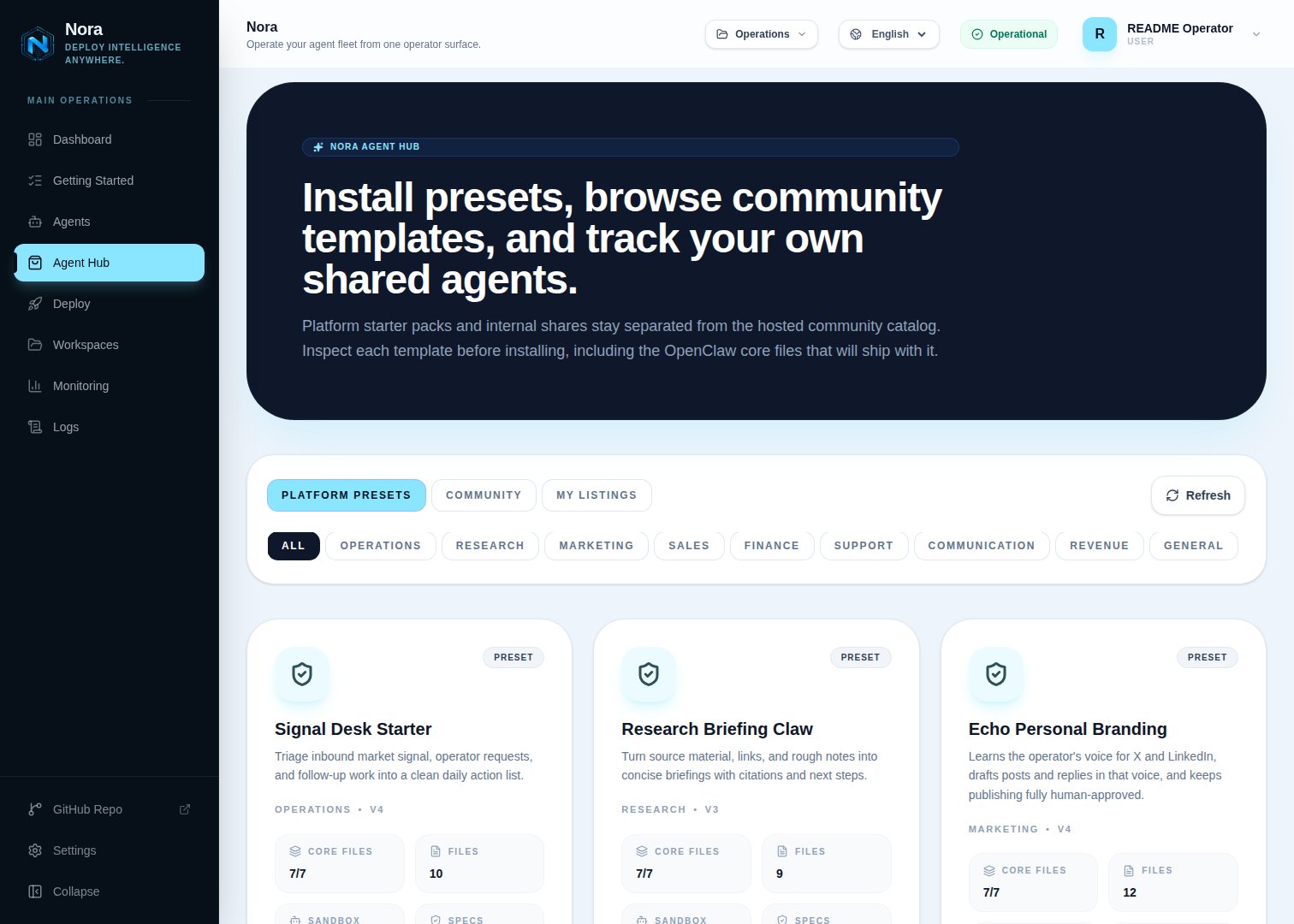 From the dashboard, open **Agent Hub** in the workspace navigation. The catalog shows three filters: **Internal** (your workspace's listings), **Community** (synced from the upstream hub), and **Built-in** (platform-seeded templates).
Click any listing to open its detail page. You'll see the runtime family, deploy target, sandbox
profile, default image, and any bootstrap files or integrations the template wires up.
Choose the workspace (defaults to the current one) and an agent name. Nora materializes the latest version of the listing into a new agent in `queued` status. The deployment job runs the same path as a manual deploy.
From the dashboard, open **Agent Hub** in the workspace navigation. The catalog shows three filters: **Internal** (your workspace's listings), **Community** (synced from the upstream hub), and **Built-in** (platform-seeded templates).
Click any listing to open its detail page. You'll see the runtime family, deploy target, sandbox
profile, default image, and any bootstrap files or integrations the template wires up.
Choose the workspace (defaults to the current one) and an agent name. Nora materializes the latest version of the listing into a new agent in `queued` status. The deployment job runs the same path as a manual deploy.
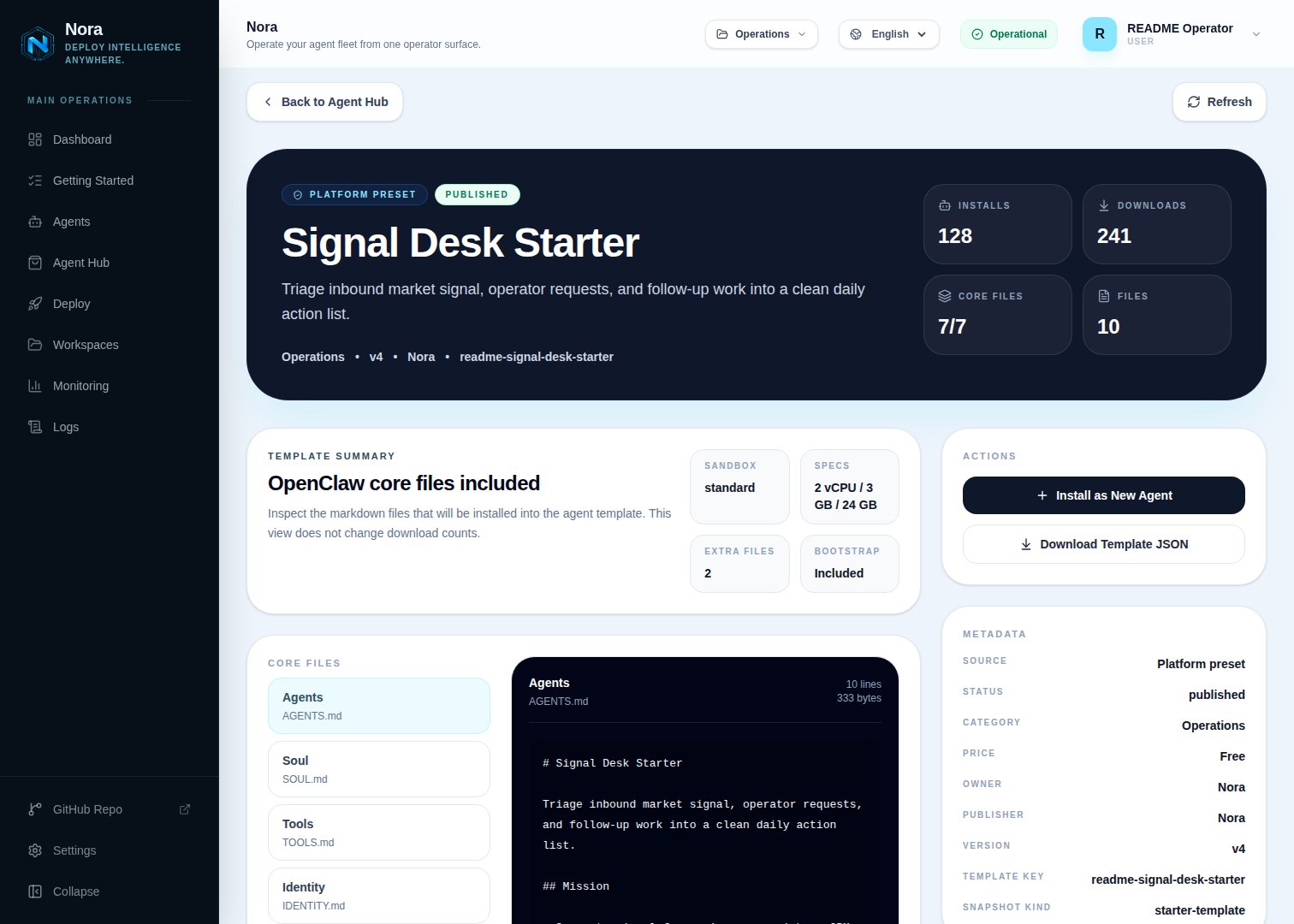 Installing requires the `editor` role on the destination workspace.
## Publish a workspace listing
Open the agent detail page for the agent you want to template. Make sure it's healthy — the listing snapshot reflects the agent's current image, env, files, and integrations.
Installing requires the `editor` role on the destination workspace.
## Publish a workspace listing
Open the agent detail page for the agent you want to template. Make sure it's healthy — the listing snapshot reflects the agent's current image, env, files, and integrations.
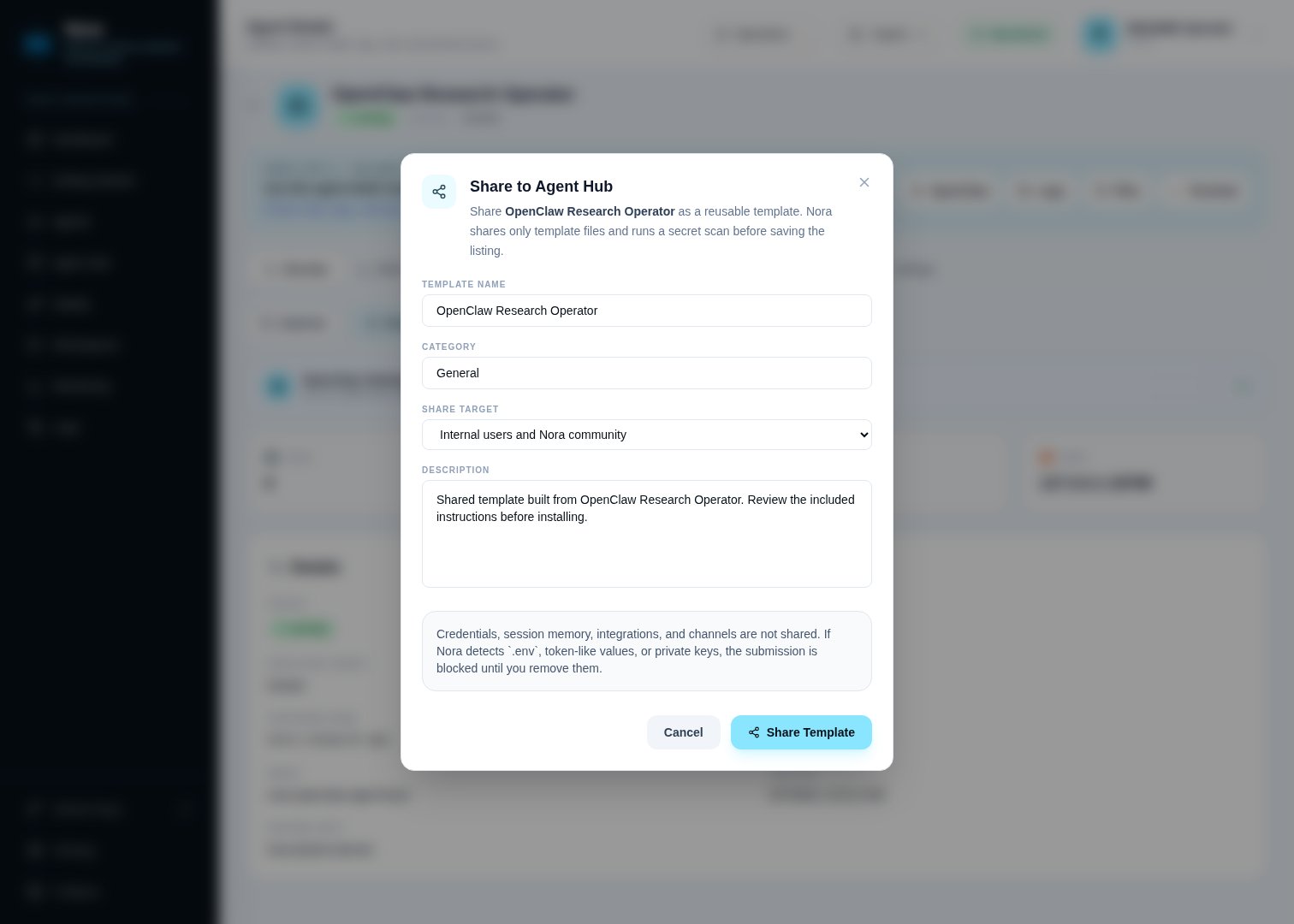 The publish dialog asks for:
* **Name** — display name for the listing.
* **Description** — short description shown in the catalog.
* **Category** — free-form label used for filtering.
* **Share target** — `internal` (your workspace only), `community` (push to the upstream hub), or `both`.
Nora captures a snapshot of the agent and creates the listing. If you chose `community` or `both`, the listing is also queued for upstream review; its status shows as **Pending review** until the upstream hub approves it.
Use `internal` first to verify the listing installs cleanly in another workspace before sharing it publicly.
## Roll out a new version
When the source agent's image, env, or files change, you can capture a new version on top of the existing listing instead of publishing a fresh one.
1. Open the listing detail page.
2. Click **Capture new version**.
3. Choose `files_only` (recommended) or `image_and_files`.
4. Confirm.
Existing installs keep running their previous version. Any future install picks up the latest version automatically.
## Share to the community catalog
Workspace listings published with share target `community` or `both` sync to the upstream Agent Hub at `NORA_AGENT_HUB_URL` (default `https://nora.solomontsao.com`). The flow:
1. Listing is created locally with `centralShareStatus = pending`.
2. Nora pushes the listing payload to the upstream hub using the workspace's source-catalog API key.
3. Upstream reviewers approve, request changes, or reject. The result is mirrored to `centralShareStatus`.
4. Approved listings appear in every workspace's **Community** filter.
If sharing fails (network error, missing key, validation rejection), the listing's `centralError` shows the cause and the listing stays in `pending`. Click **Retry sync** from the listing detail page to push again.
## Manage source-catalog keys
The publish dialog asks for:
* **Name** — display name for the listing.
* **Description** — short description shown in the catalog.
* **Category** — free-form label used for filtering.
* **Share target** — `internal` (your workspace only), `community` (push to the upstream hub), or `both`.
Nora captures a snapshot of the agent and creates the listing. If you chose `community` or `both`, the listing is also queued for upstream review; its status shows as **Pending review** until the upstream hub approves it.
Use `internal` first to verify the listing installs cleanly in another workspace before sharing it publicly.
## Roll out a new version
When the source agent's image, env, or files change, you can capture a new version on top of the existing listing instead of publishing a fresh one.
1. Open the listing detail page.
2. Click **Capture new version**.
3. Choose `files_only` (recommended) or `image_and_files`.
4. Confirm.
Existing installs keep running their previous version. Any future install picks up the latest version automatically.
## Share to the community catalog
Workspace listings published with share target `community` or `both` sync to the upstream Agent Hub at `NORA_AGENT_HUB_URL` (default `https://nora.solomontsao.com`). The flow:
1. Listing is created locally with `centralShareStatus = pending`.
2. Nora pushes the listing payload to the upstream hub using the workspace's source-catalog API key.
3. Upstream reviewers approve, request changes, or reject. The result is mirrored to `centralShareStatus`.
4. Approved listings appear in every workspace's **Community** filter.
If sharing fails (network error, missing key, validation rejection), the listing's `centralError` shows the cause and the listing stays in `pending`. Click **Retry sync** from the listing detail page to push again.
## Manage source-catalog keys
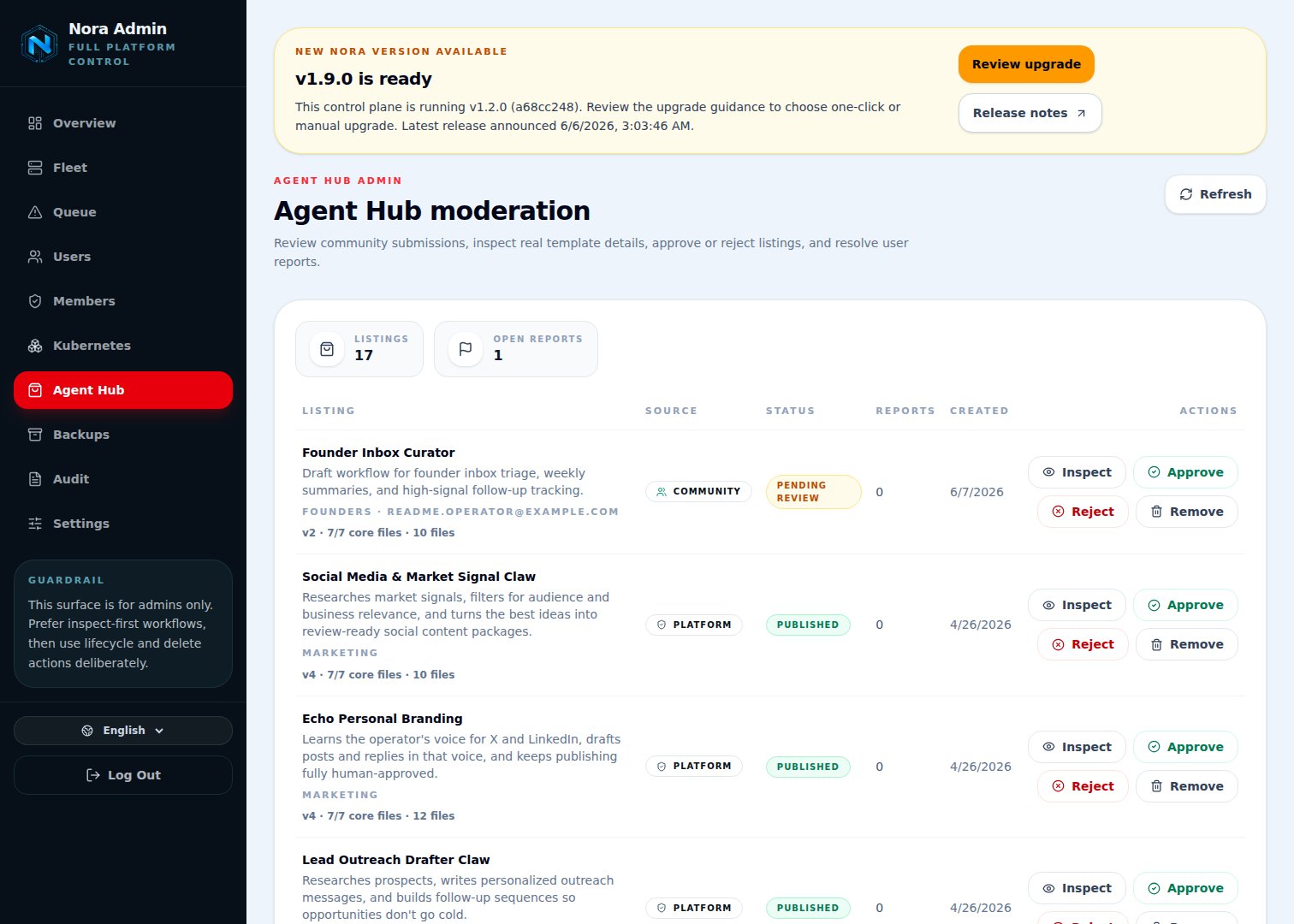 The Agent Hub source-catalog API key authenticates Nora to the upstream hub. Manage keys under **Admin Settings → Agent Hub**.
* Keys are stored hashed using `NORA_AGENT_HUB_API_KEY_HASH_SECRET`. Rotating the secret invalidates every issued key.
* Each key has a label, status (`active` / `revoked`), and a 6-character prefix shown in the UI.
* Self-hosters can either use the upstream community hub or run their own and point `NORA_AGENT_HUB_URL` at it.
## Permissions
| Capability | Required role |
| -------------------------------- | ------------- |
| Browse listings | viewer |
| Install a listing | editor |
| Publish, edit, unpublish listing | admin |
| Manage source-catalog API keys | admin |
## Troubleshooting
Check the agent detail page for the new agent — the deploy job's `failedReason` shows up there. Common causes: the destination workspace lacks the runtime family, deploy target, or sandbox profile the listing requires.
Open the listing detail page and check `centralError`. If it mentions auth, regenerate the
source-catalog API key. If it mentions validation, the upstream hub rejected the payload — usually
for a missing description or an unsupported runtime ID.
Reports are reviewed in the upstream hub. The publishing workspace sees the report's resolution mirrored back; reporters see their own report status under **Settings → My reports**.
The Agent Hub source-catalog API key authenticates Nora to the upstream hub. Manage keys under **Admin Settings → Agent Hub**.
* Keys are stored hashed using `NORA_AGENT_HUB_API_KEY_HASH_SECRET`. Rotating the secret invalidates every issued key.
* Each key has a label, status (`active` / `revoked`), and a 6-character prefix shown in the UI.
* Self-hosters can either use the upstream community hub or run their own and point `NORA_AGENT_HUB_URL` at it.
## Permissions
| Capability | Required role |
| -------------------------------- | ------------- |
| Browse listings | viewer |
| Install a listing | editor |
| Publish, edit, unpublish listing | admin |
| Manage source-catalog API keys | admin |
## Troubleshooting
Check the agent detail page for the new agent — the deploy job's `failedReason` shows up there. Common causes: the destination workspace lacks the runtime family, deploy target, or sandbox profile the listing requires.
Open the listing detail page and check `centralError`. If it mentions auth, regenerate the
source-catalog API key. If it mentions validation, the upstream hub rejected the payload — usually
for a missing description or an unsupported runtime ID.
Reports are reviewed in the upstream hub. The publishing workspace sees the report's resolution mirrored back; reporters see their own report status under **Settings → My reports**.