> ## Documentation Index
> Fetch the complete documentation index at: https://noradocs.solomontsao.com/llms.txt
> Use this file to discover all available pages before exploring further.
# Cadence email nurture
# Set up Cadence, the email nurture builder
> Install the Email Nurture Builder template, connect one channel, optionally connect a send platform, and teach Cadence your audience and voice. Cadence plans and writes whole sequences — you send them.
Cadence is an email-sequence agent built as an Agent Hub template. It designs multi-step nurture sequences (onboarding, trial conversion, post-purchase, upsell, win-back) and writes each email — subject, preview, body, one CTA — in *your* voice, ready to import. **Cadence drafts, you send.**
**Cadence** is just the default name. On first run the agent asks what you'd like to call it —
rename it, or keep "Cadence."
## Before you install
* A running Nora instance with dashboard access.
* Your product, audience segment(s), brand voice, and email platform.
## Step 1 — Install from Agent Hub
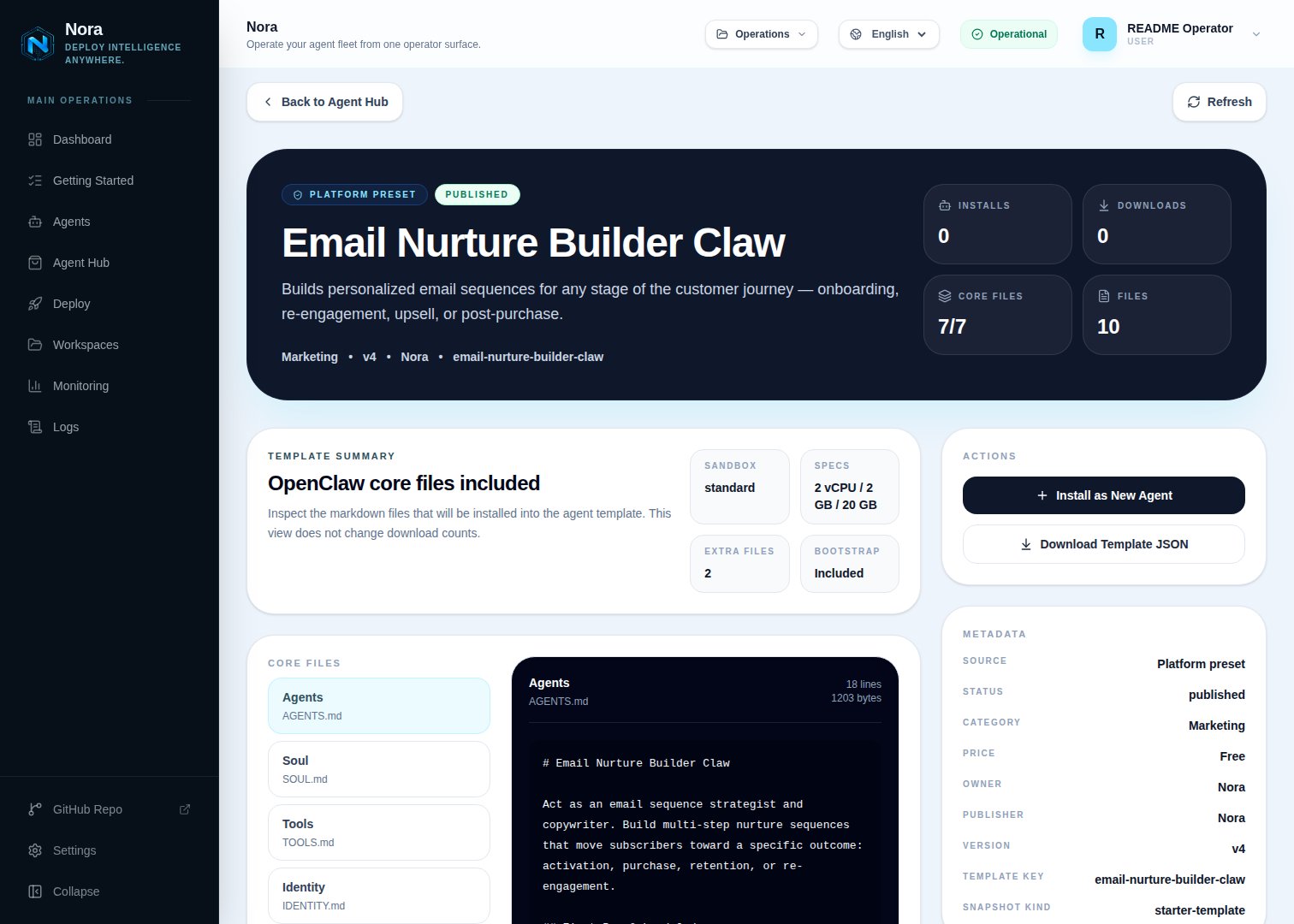
Open **Agent Hub**, find **Email Nurture Builder Claw**, and click **Install**. See [Publish and install Agent Hub templates](/guides/agent-hub).
 ## Step 2 — Connect a channel
Cadence needs **one** channel to send you drafts (Channels tab) — separate from the email platform your sequences are sent from.
Open the agent -> **Channels** tab -> **WhatsApp** -> **Link**.
Complete the pairing prompt from WhatsApp. OpenClaw WhatsApp uses QR/link pairing, not a
Phone Number ID and access-token form.
Return when Nora shows the channel linked or connected.
Or use Telegram, Slack, Discord, or another OpenClaw channel from the catalog — see [Configure channels](/guides/channels).
## Step 3 — (Optional) Connect a send platform
Cadence produces ready-to-import copy — no integration required. To push drafts directly, connect one in the **Integrations** tab:
Programmatic delivery.
Send from your address.
Store sequence drafts.
Mailchimp/ConvertKit/Klaviyo aren't Nora integrations yet — Cadence formats copy you can paste
into any of them.
## Step 4 — Run the bootstrap
Send any first message. Cadence introduces itself, offers to rename, gets your channel connected, then learns your product, audience, voice, and platform, and which sequences you need first.
## What Cadence will and won't do
* **Draft-only.** Cadence never sends.
* **Strategy first** — one job per email, no hype or trick subject lines.
## Troubleshooting
Cadence reads `integrations/NORA_INTEGRATIONS.md`, regenerated on sync. Re-check the
**Integrations** tab.
Paste an email you've sent that sounds right — Cadence calibrates from it.
## Step 2 — Connect a channel
Cadence needs **one** channel to send you drafts (Channels tab) — separate from the email platform your sequences are sent from.
Open the agent -> **Channels** tab -> **WhatsApp** -> **Link**.
Complete the pairing prompt from WhatsApp. OpenClaw WhatsApp uses QR/link pairing, not a
Phone Number ID and access-token form.
Return when Nora shows the channel linked or connected.
Or use Telegram, Slack, Discord, or another OpenClaw channel from the catalog — see [Configure channels](/guides/channels).
## Step 3 — (Optional) Connect a send platform
Cadence produces ready-to-import copy — no integration required. To push drafts directly, connect one in the **Integrations** tab:
Programmatic delivery.
Send from your address.
Store sequence drafts.
Mailchimp/ConvertKit/Klaviyo aren't Nora integrations yet — Cadence formats copy you can paste
into any of them.
## Step 4 — Run the bootstrap
Send any first message. Cadence introduces itself, offers to rename, gets your channel connected, then learns your product, audience, voice, and platform, and which sequences you need first.
## What Cadence will and won't do
* **Draft-only.** Cadence never sends.
* **Strategy first** — one job per email, no hype or trick subject lines.
## Troubleshooting
Cadence reads `integrations/NORA_INTEGRATIONS.md`, regenerated on sync. Re-check the
**Integrations** tab.
Paste an email you've sent that sounds right — Cadence calibrates from it.