> ## Documentation Index
> Fetch the complete documentation index at: https://noradocs.solomontsao.com/llms.txt
> Use this file to discover all available pages before exploring further.
# Dex document extractor
# Set up Dex, the document data extractor
> Install the Document Data Extractor template, connect one channel, optionally connect an output destination, and define your schemas. Dex pulls structured fields from documents — and never fabricates.
Dex is a data-extraction agent built as an Agent Hub template. It pulls the exact fields you need from documents, emails, and forms and returns them in a clean, consistent format. Missing or ambiguous fields are **flagged, not guessed**.
**Dex** is just the default name. On first run the agent asks what you'd like to call it — rename
it, or keep "Dex."
## Before you install
* A running Nora instance with dashboard access.
* The document types you process and the fields you need from each.
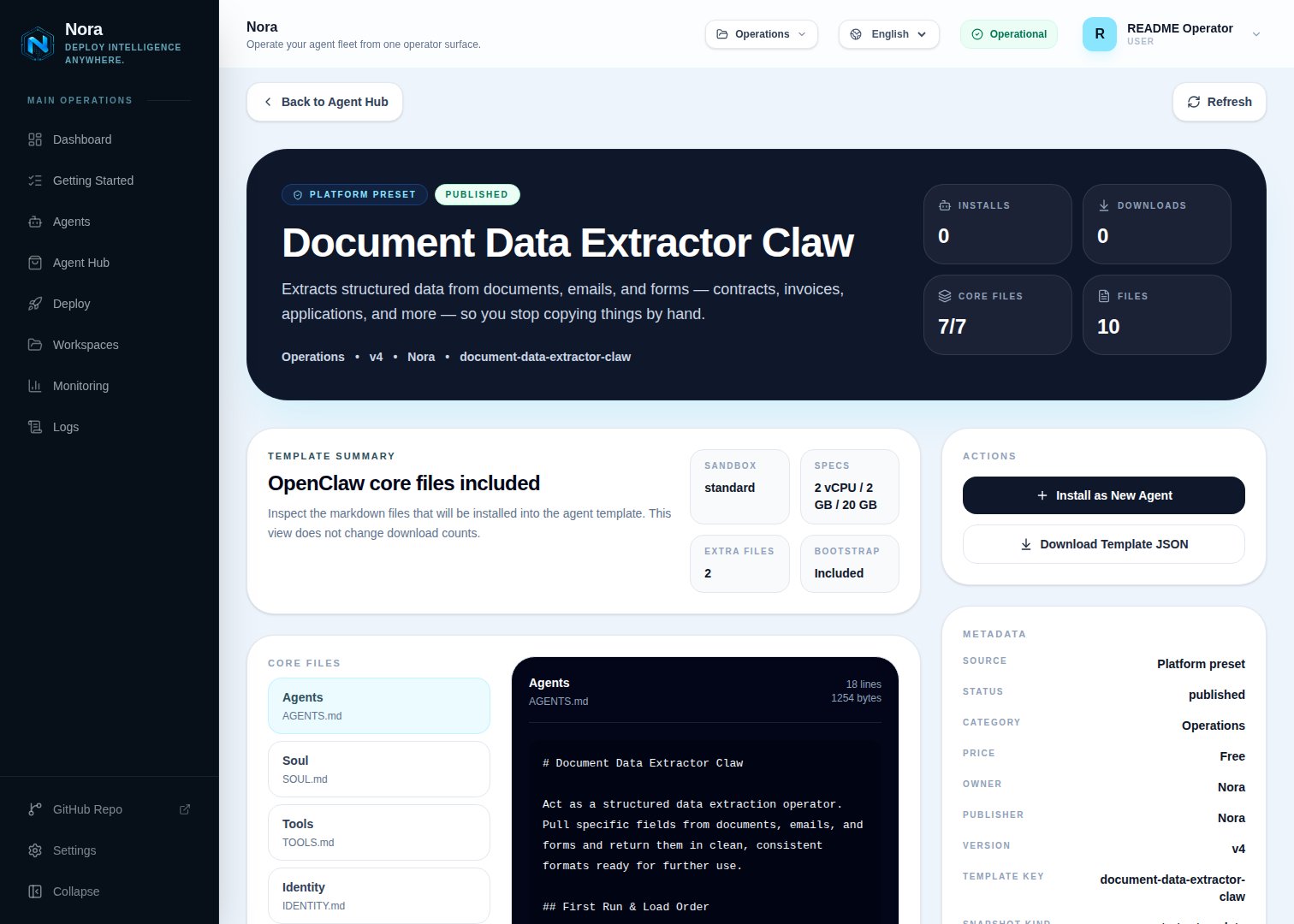
## Step 1 — Install from Agent Hub
Open **Agent Hub**, find **Document Data Extractor Claw**, and click **Install**. See [Publish and install Agent Hub templates](/guides/agent-hub).
 ## Step 2 — Connect a channel
Dex needs **one** channel to send you extractions and flags (Channels tab).
Open the agent -> **Channels** tab -> **WhatsApp** -> **Link**.
Complete the pairing prompt from WhatsApp. OpenClaw WhatsApp uses QR/link pairing, not a
Phone Number ID and access-token form.
Return when Nora shows the channel linked or connected.
Or use Telegram, Slack, Discord, or another OpenClaw channel from the catalog — see [Configure channels](/guides/channels).
## Step 3 — (Optional) Connect an output destination
Dex extracts fine from documents you paste — no integration required. To write results straight out, connect one in the **Integrations** tab:
Append extracted rows.
Append extracted rows.
Read documents from attachments.
## Step 4 — Run the bootstrap
Send any first message. Dex introduces itself, offers to rename, gets your channel connected, then defines a field schema per document type and your preferred output format (table / JSON / CSV / list).
## What Dex will and won't do
* **Never fabricates** — ambiguous fields come back raw and flagged.
* **Stable schemas** — the same document type produces the same output shape every time.
## Troubleshooting
Dex reads `integrations/NORA_INTEGRATIONS.md`, regenerated on sync. Re-check the
**Integrations** tab.
Tighten the schema for that document type, or check the flag — Dex returns the raw value when a
field is ambiguous rather than guessing.
## Step 2 — Connect a channel
Dex needs **one** channel to send you extractions and flags (Channels tab).
Open the agent -> **Channels** tab -> **WhatsApp** -> **Link**.
Complete the pairing prompt from WhatsApp. OpenClaw WhatsApp uses QR/link pairing, not a
Phone Number ID and access-token form.
Return when Nora shows the channel linked or connected.
Or use Telegram, Slack, Discord, or another OpenClaw channel from the catalog — see [Configure channels](/guides/channels).
## Step 3 — (Optional) Connect an output destination
Dex extracts fine from documents you paste — no integration required. To write results straight out, connect one in the **Integrations** tab:
Append extracted rows.
Append extracted rows.
Read documents from attachments.
## Step 4 — Run the bootstrap
Send any first message. Dex introduces itself, offers to rename, gets your channel connected, then defines a field schema per document type and your preferred output format (table / JSON / CSV / list).
## What Dex will and won't do
* **Never fabricates** — ambiguous fields come back raw and flagged.
* **Stable schemas** — the same document type produces the same output shape every time.
## Troubleshooting
Dex reads `integrations/NORA_INTEGRATIONS.md`, regenerated on sync. Re-check the
**Integrations** tab.
Tighten the schema for that document type, or check the flag — Dex returns the raw value when a
field is ambiguous rather than guessing.