> ## Documentation Index
> Fetch the complete documentation index at: https://noradocs.solomontsao.com/llms.txt
> Use this file to discover all available pages before exploring further.
# Echo personal branding
# Set up Echo, the personal-branding agent
> Install the Echo Agent Hub template, connect X and/or LinkedIn, connect one channel, and run the bootstrap that learns your voice. Echo drafts posts and replies in your voice for X, LinkedIn, or both — then publishes original posts after you approve final text.
Echo is a ghostwriting-oriented Agent Hub template for X and LinkedIn. It runs a guided bootstrap, builds a `VOICE.md` from your real writing samples, drafts multiple post angles, prepares engagement replies for review, and keeps platform-specific playbooks close to the daily workflow. **Original posts can go out after your explicit approval; nothing is published or sent on its own.**
You can run Echo for **X only, LinkedIn only, or both** — the platform you pick during bootstrap drives everything downstream.
**Echo** is just the default name. Bootstrap's first question is what you'd like to call the agent
— rename it to anything, or keep "Echo." This guide calls it Echo throughout.
## Before you install
You'll connect integrations and channels from the agent's detail page, so you need `editor`
access to the destination workspace.
X only, LinkedIn only, or both. You can start with one and add the other later — it's not a
permanent choice.
Real posts, emails, or texts that sound like you. Echo extracts your voice from these during
bootstrap. Quality matters more than format.
## Step 1 — Install Echo from Agent Hub
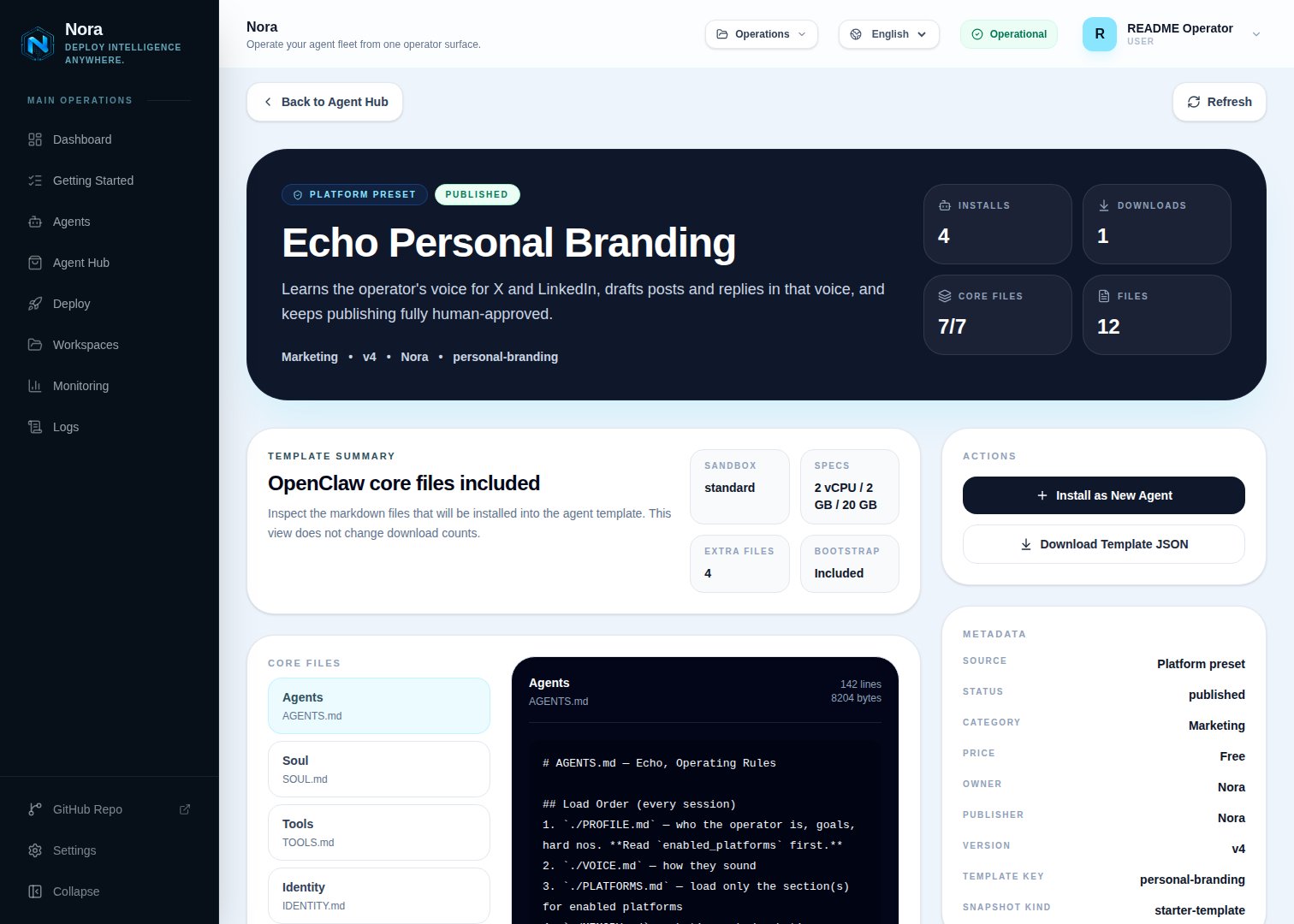
From the dashboard, open **Agent Hub**, find the **Echo Personal Branding** listing (under the **Built-in** filter), and click **Install**. Pick a workspace and agent name. Nora materializes the template's files into a new agent.
See [Publish and install Agent Hub templates](/guides/agent-hub) for the general install flow.
 ## Step 2 — Connect your platform(s)
Open the agent → **Integrations** tab. Connect **at least one** of the two platforms — only the one(s) you plan to manage.
Click Authorize with X. Requires an X OAuth 2.0 app with the
## Step 2 — Connect your platform(s)
Open the agent → **Integrations** tab. Connect **at least one** of the two platforms — only the one(s) you plan to manage.
Click Authorize with X. Requires an X OAuth 2.0 app with the tweet.read,{" "}
tweet.write, users.read, and offline.access scopes.
Click Authorize with LinkedIn. Requires a LinkedIn developer app with the{" "}
openid, profile, email, and w\_member\_social{" "}
scopes.
The OAuth app setup (registering the redirect URI, copying the Client ID/Secret) is covered in the
per-provider guides linked above. Nora runs the full authorize → callback flow — you never paste a
long-lived token.
When you connect a provider, Nora automatically writes `integrations/NORA_INTEGRATIONS.md` into the agent's workspace and updates `TOOLS.md`. Echo reads that file to know what's connected — you never edit it by hand.
## Step 3 — Connect one channel
Echo needs **one** communication channel to reach you with briefs, drafts, and approval requests. This lives in the **Channels** tab — a different tab from Integrations.
WhatsApp is the recommended example:
Open the agent -> **Channels** tab -> **WhatsApp** -> **Link**.
Complete the pairing prompt from WhatsApp. OpenClaw WhatsApp uses QR/link pairing, not a
Phone Number ID and access-token form.
Return when Nora shows the channel linked or connected.
Prefer something else? Use Telegram, Slack, Discord, or another OpenClaw channel from the catalog — see [Configure channels](/guides/channels) for each one's required fields. You only need one.
## Step 4 — Run the bootstrap
Start the runtime and send any first message ("hey" works). Echo introduces herself and what she does, then walks through setup (\~15–20 min):
* **Names herself.** The default name is **Echo**, but the first thing bootstrap does is ask what you'd like to call the agent — reply with any name, or keep "Echo." Whatever you pick is used from then on and saved to `PROFILE.md`.
* Captures who you are and what you want to be known for
* **Asks which platform(s) to manage** and collects handles only for those
* Confirms your platform integration(s) are connected (sends you back to the Integrations tab if not)
* Learns your voice from 5+ samples and writes `VOICE.md`
* Captures cadence, goals, and hard-no topics
* Drafts a test post so you can calibrate
You can bail and resume later, or re-run anytime with **"rebootstrap"**.
## Single platform vs. both
Your choice in bootstrap (`enabled_platforms`) cascades through every behavior file. Echo never acts on a platform you didn't enable.
| Behavior | X only | LinkedIn only | Both |
| ----------------------------------- | ----------------------- | ----------------------- | ----------------------------- |
| Drafts | X posts/threads/replies | LinkedIn posts/comments | Both, adapted per platform |
| Heartbeats (briefs, scans, reviews) | Scoped to X | Scoped to LinkedIn | Both platforms |
| `PLATFORMS.md` playbook | X section only | LinkedIn section only | Both + cross-platform section |
| `VOICE.md` platform shifts | X register only | LinkedIn register only | Both registers |
| Cross-platform adaptation | — | — | Active (post 12–24h apart) |
Started with one and want the other? Just tell Echo **"add X"** or **"add LinkedIn"** — she'll walk you through connecting it and switch on its workflows.
## What Echo will and won't do
* **Approval-gated publishing.** Echo drafts; you approve final text; Echo can post approved original content through connected X/LinkedIn integrations. There is no auto-posting and no auto-engagement.
* **Approval every time.** Publishing each original post requires your explicit live approval — prior approval never carries over.
* **Engagement stays manual.** DMs, replies, comments, profile changes, follows, likes, reposts, and connection actions remain draft/recommend-only.
* **Hard nos are absolute.** Topics you list during bootstrap are never drafted.
## API limits
* **X:** the free API tier is very limited for reads. Analytics pulls need the Premium API or manual dashboard exports.
* **LinkedIn:** the API is restrictive; most operators paste analytics screenshots for Echo to parse during the weekly review.
* Either way, **drafting works without API access** — auto-pulled analytics and approval-gated posting require the platform integration.
## Troubleshooting
Echo reads `integrations/NORA_INTEGRATIONS.md` in its workspace. That file is regenerated when integrations sync. Re-open the **Integrations** tab to confirm the provider shows **connected**, then tell Echo to re-check.
Confirm the redirect URI registered in your developer app exactly matches the one Nora's integration modal shows (`https:///api/integrations/twitter/oauth/callback` or `.../linkedin/oauth/callback`), and that the required scopes are enabled. See the [X](/guides/integrations/twitter) and [LinkedIn](/guides/integrations/linkedin) guides.
Rotate it immediately (in the provider's developer console or, for a channel, the provider's app), then enter the replacement in the correct tab — **Integrations** for X/LinkedIn, **Channels** for Telegram/Slack/etc. Echo never stores credentials from chat.