> ## Documentation Index
> Fetch the complete documentation index at: https://noradocs.solomontsao.com/llms.txt
> Use this file to discover all available pages before exploring further.
# Iris instagram
# Set up Iris, the Instagram manager
> Install the Iris Agent Hub template, connect Instagram Graph, connect one channel, and teach Iris your brand. Iris plans your calendar and drafts captions, hooks, hashtags, and reply queues — you approve and publish everything.
Iris is a single-account Instagram operator built as an Agent Hub template. She plans a weekly content calendar, drafts captions and hashtag sets, prepares DM and comment replies for approval, watches trends in your niche, and compiles weekly performance reviews. **Publishing stays manual by design** — Iris drafts, you post, reply, and follow.
**Iris** is just the default name. On first run she asks what you'd like to call the agent —
rename it to anything, or keep "Iris." This guide calls her Iris throughout.
## Before you install
You connect the integration and channel from the agent's detail page, so you need `editor`
access to the destination workspace.
Connected to a Facebook Page. Personal accounts can't use the Instagram Graph API. You'll need
an Access Token and the Business Account ID.
Handle, niche, audience, three voice adjectives with a couple of examples, content pillars, and
hard nos. Iris turns these into `BRAND.md` — her single most important file.
## Step 1 — Install Iris from Agent Hub
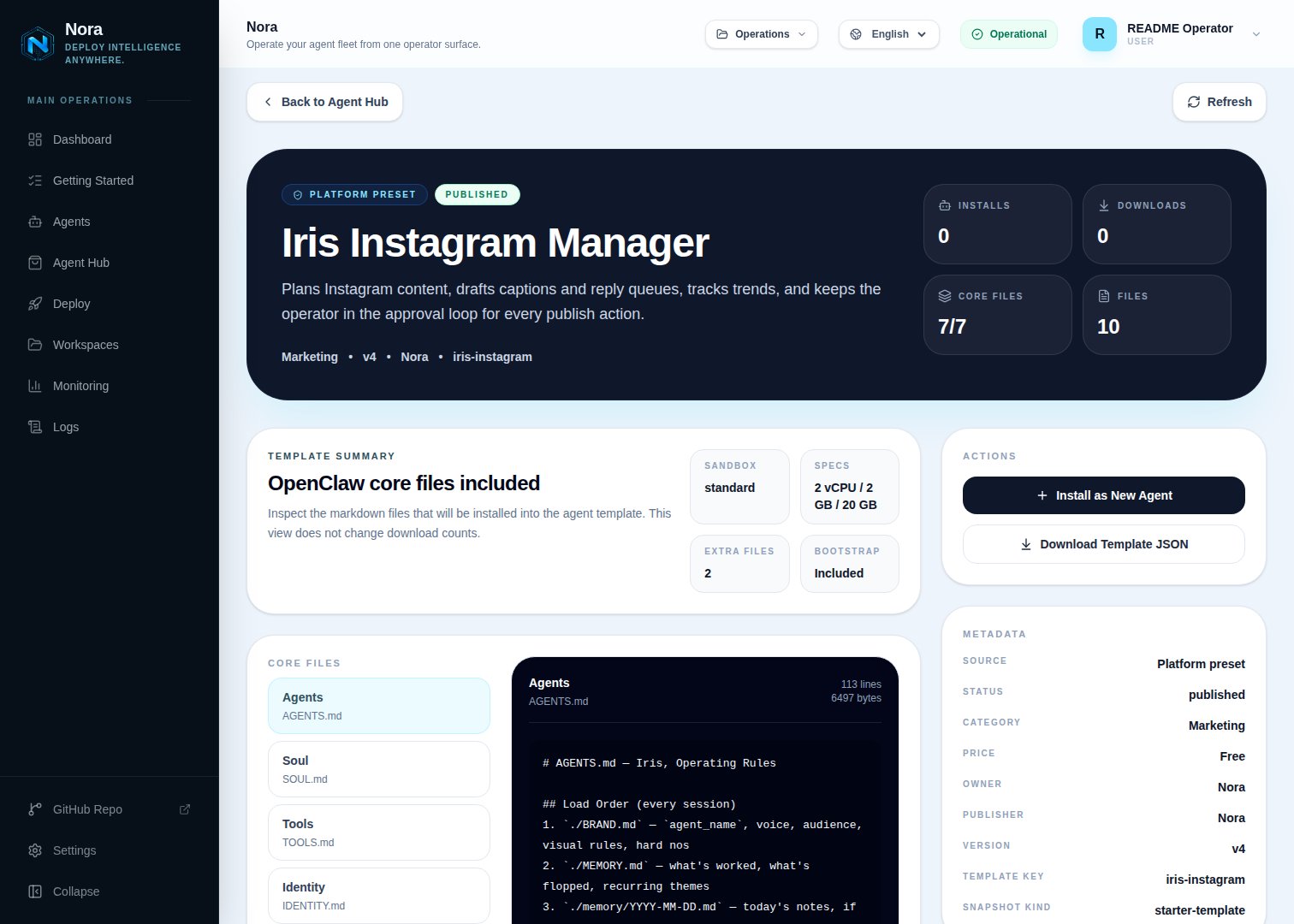
From the dashboard, open **Agent Hub**, find the **Iris Instagram Manager** listing (under the **Built-in** filter), and click **Install**. Pick a workspace and agent name. Nora materializes the template's files into a new agent.
See [Publish and install Agent Hub templates](/guides/agent-hub) for the general install flow.
 ## Step 2 — Connect Instagram
Open the agent → **Integrations** tab and connect **Instagram Graph**.
Form-based connect: paste a long-lived Access Token and your Business Account ID{" "}
(Facebook Page ID optional). Requires a Creator or Business account with the{" "}
## Step 2 — Connect Instagram
Open the agent → **Integrations** tab and connect **Instagram Graph**.
Form-based connect: paste a long-lived Access Token and your Business Account ID{" "}
(Facebook Page ID optional). Requires a Creator or Business account with the{" "}
instagram\_basic, instagram\_content\_publish, and{" "}
pages\_show\_list scopes.
Iris reads insights, comments, and media through this integration. Without it she can still plan
and draft from your brand file — she just can't pull live analytics. The API is read-oriented;
most operators do the final publish step in the Instagram app or Meta Business Suite.
When you connect the provider, Nora automatically writes `integrations/NORA_INTEGRATIONS.md` into the agent's workspace and updates `TOOLS.md`. Iris reads that file to know what's connected — you never edit it by hand.
## Step 3 — Connect one channel
Iris needs **one** communication channel to reach you with rundowns, draft batches, and approval requests. This lives in the **Channels** tab — a different tab from Integrations.
WhatsApp is the recommended example:
Open the agent -> **Channels** tab -> **WhatsApp** -> **Link**.
Complete the pairing prompt from WhatsApp. OpenClaw WhatsApp uses QR/link pairing, not a
Phone Number ID and access-token form.
Return when Nora shows the channel linked or connected.
Prefer something else? Use Telegram, Slack, Discord, or another OpenClaw channel from the catalog — see [Configure channels](/guides/channels). You only need one.
## Step 4 — Teach Iris your brand
Send any first message. Iris introduces herself, offers to rename, confirms your integration and channel are connected, then walks you through `BRAND.md`:
* Your handle, niche, and account type
* Who follows you and the one reason they hit follow
* Three voice adjectives + "do sound like / do NOT sound like" examples
* Content pillars (the buckets most posts fit)
* Hard nos — topics, phrasings, or days that are off-limits
You can answer in chat and let Iris write the file, or fill `BRAND.md` directly. **This is the most important step** — without a real brand file, captions come out generic. Iris reads it back for confirmation, then offers a first action: a week plan, test captions, or a trend scan.
## What Iris will and won't do
* **Draft-only by design.** Iris drafts captions, calendars, and replies; you publish, reply, and follow.
* **No growth automation.** Auto-follow, auto-like, auto-comment, and engagement pods are blocked on purpose — they get accounts action-blocked or shadowbanned.
* **Approval every time.** Every feed post, Story, Reel, comment, and DM is drafted for your review.
## API limits
* **Instagram Graph is restrictive.** It gives insights, comment reads, and Content Publishing — but Stories, Reels publishing, and DM automation are limited or heavily rate-limited.
* **Meta Business Suite is the easy path:** Iris drafts the caption, hashtags, and visual brief; you upload and schedule the asset there.
* Drafting works without API access — only auto-pulled analytics are affected.
## Troubleshooting
Iris reads `integrations/NORA_INTEGRATIONS.md`, regenerated when integrations sync. Re-open the
**Integrations** tab to confirm **Instagram Graph** shows connected, then ask Iris to re-check.
Confirm the account is a Creator or Business account linked to a Facebook Page, the token is
long-lived, and it carries the `instagram_basic`, `instagram_content_publish`, and
`pages_show_list` scopes. See the [Instagram integration guide](/guides/integrations/instagram).
`BRAND.md` needs more signal — add "do sound like / do NOT sound like" examples and tighten the
hard nos. Iris reads it every session.