> ## Documentation Index
> Fetch the complete documentation index at: https://noradocs.solomontsao.com/llms.txt
> Use this file to discover all available pages before exploring further.
# Manage providers
# Add and sync LLM provider keys in Nora
> Save, manage, and sync LLM provider API keys to running agents in Nora. Covers adding keys, setting a default provider, and using the Sync button.
Nora stores your LLM provider API keys centrally and injects them into agent containers at deployment time or on demand via the Sync button. Keys are encrypted at rest using AES-256-GCM and never returned in plaintext through the API — only a masked preview (first four and last four characters) is shown in the dashboard. This page explains how to add a provider key, set a default, sync keys to a running agent, and remove a key you no longer need.
## Supported providers
Nora supports the following LLM providers:
| Provider | Environment variable |
| ----------------- | --------------------------- |
| Anthropic | `ANTHROPIC_API_KEY` |
| OpenAI | `OPENAI_API_KEY` |
| Google AI | `GEMINI_API_KEY` |
| Groq | `GROQ_API_KEY` |
| Mistral AI | `MISTRAL_API_KEY` |
| DeepSeek | `DEEPSEEK_API_KEY` |
| OpenRouter | `OPENROUTER_API_KEY` |
| Together AI | `TOGETHER_API_KEY` |
| Cohere | `COHERE_API_KEY` |
| xAI | `XAI_API_KEY` |
| Moonshot AI | `MOONSHOT_API_KEY` |
| Z.AI | `ZAI_API_KEY` |
| Ollama | `OLLAMA_API_KEY` |
| MiniMax | `MINIMAX_API_KEY` |
| GitHub Copilot | `COPILOT_GITHUB_TOKEN` |
| Hugging Face | `HF_TOKEN` |
| Cerebras | `CEREBRAS_API_KEY` |
| NVIDIA | `NVIDIA_API_KEY` |
| Microsoft Foundry | `MICROSOFT_FOUNDRY_API_KEY` |
NVIDIA is required for NemoClaw agents. See [Run secure agents with NemoClaw
sandboxes](/guides/nemoclaw) for details.
Microsoft Foundry requires more than an API key. Enter your Foundry resource base URL, for example `https://.services.ai.azure.com/openai/v1/`, and set the model field to the exact Azure deployment name, such as `gpt-5.5-1`. Deployment names are created in your Foundry resource, so do not trim `-1` or replace the value with the base model id.
Nora also ships a built-in **Demo** provider (`Demo (built-in, no key required)`) that needs no API key. It runs a deterministic stub served by the control plane itself (model `nora-demo-1`). On installations with the local Docker target enabled, use **Launch local Docker demo — no API key** in the first-run flow; Nora creates the provider and demo agent atomically. The lower-level `POST /api/llm-providers` request with `{"provider":"demo"}` only creates the provider and does not make the one-click Docker activation available on Kubernetes-only deployments. Replace the demo with a real provider before production workloads.
## Add a provider key
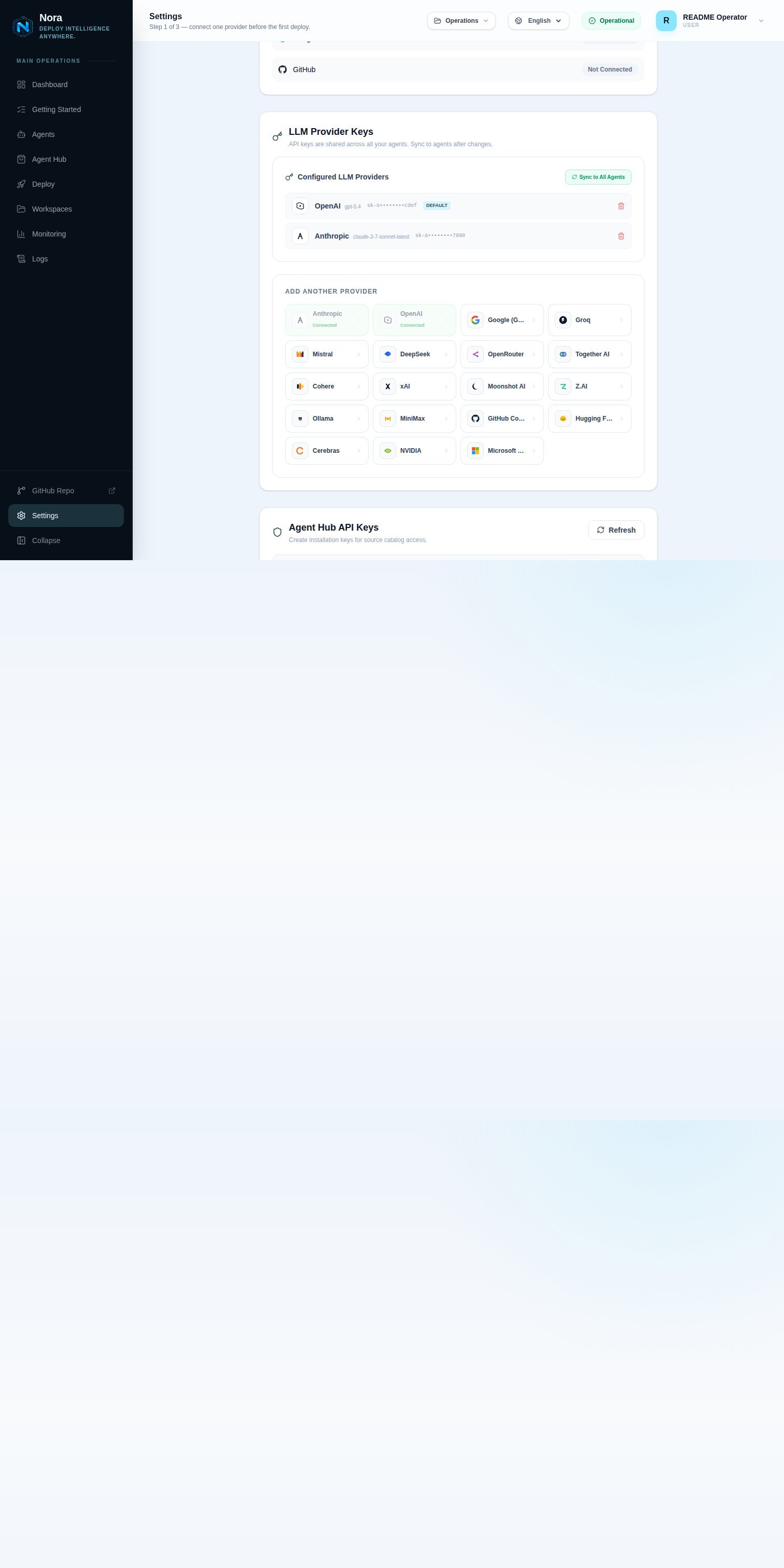 Open **Settings** from the sidebar. The provider keys section lists all keys you have saved.
Click **Add Provider** (or the equivalent button in your dashboard). A form appears with three fields.
Open **Settings** from the sidebar. The provider keys section lists all keys you have saved.
Click **Add Provider** (or the equivalent button in your dashboard). A form appears with three fields.
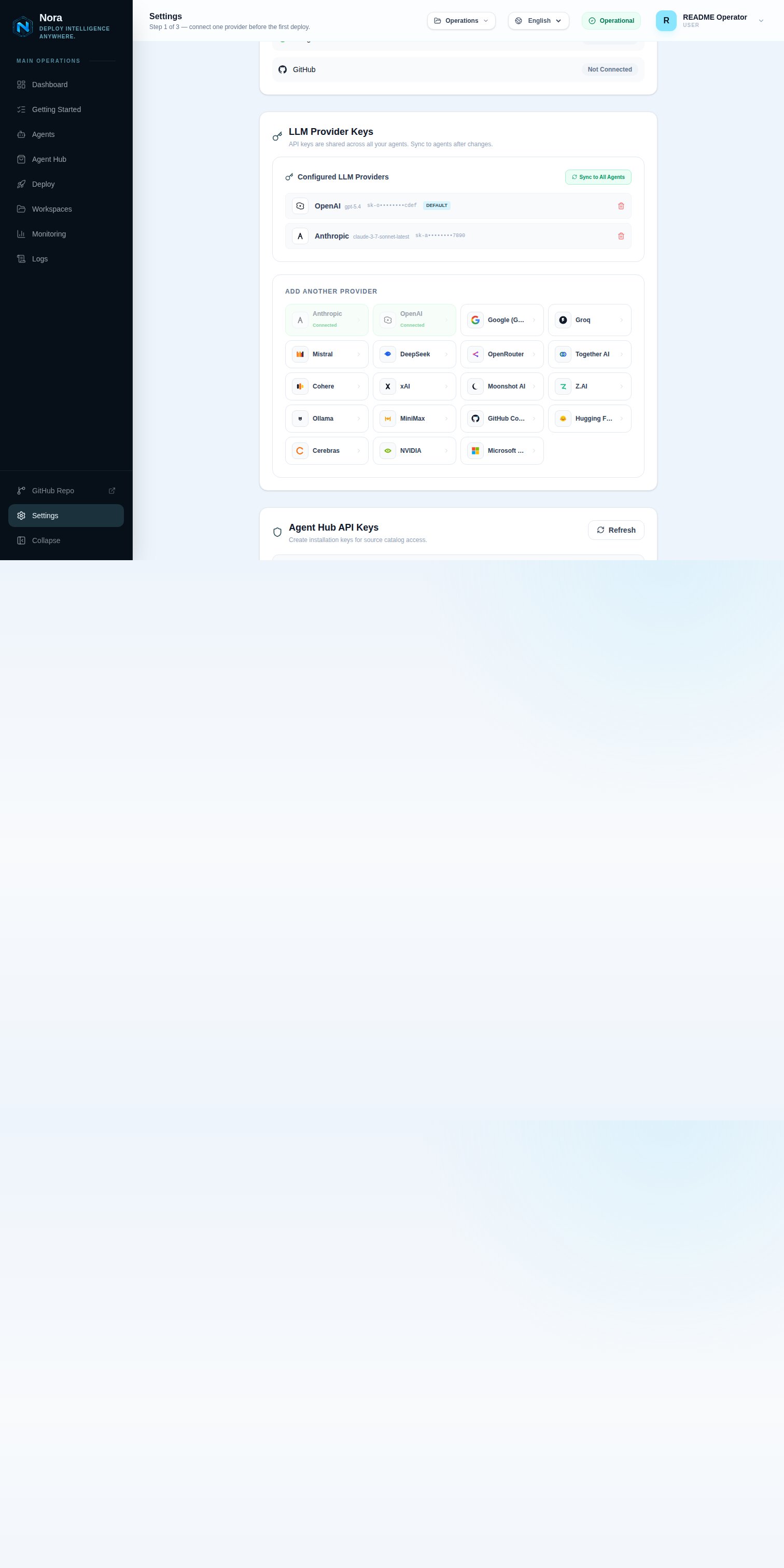 Choose a provider from the dropdown. The list contains all supported providers. The correct
environment variable for that provider is shown for reference.
Paste your API key into the **API Key** field. This value is required.
If you want agents using this provider to default to a specific model, enter the model ID in the
**Model** field. You can leave this blank to let the agent runtime select the model.
Click **Save**. Nora encrypts the key with AES-256-GCM before storing it. The dashboard shows a masked preview such as `sk-a••••••••1234`.
If this is the first key you add, Nora automatically marks it as your default provider. You can
change the default at any time.
## Set a default provider
To change which provider Nora uses by default when syncing keys to agents:
1. Find the provider entry in **Settings**.
2. Click the **Set as default** control (star icon or toggle, depending on your dashboard version).
When you set a provider as default, Nora automatically clears the default flag from any other provider entry.
## Sync keys to a running agent
Adding or updating a key in Settings does not automatically update running agents. You need to sync the keys explicitly:
1. Open the agent's detail page.
2. Click the **Sync** button in the provider keys section.
Nora decrypts all keys for your account and injects them into the running container as environment variables. The agent runtime picks up the updated keys without needing to restart.
Keys are synced encrypted in transit and injected directly into the container environment. They
are not written to disk on the host.
## Update a provider key
To replace a key (for example, after a rotation):
1. Find the provider in **Settings**.
2. Click **Edit** or the pencil icon.
3. Enter the new API key in the **API Key** field.
4. Optionally update the pinned model.
5. Click **Save**.
After saving, sync the updated key to any running agents using the **Sync** button on each agent's detail page.
## Remove a provider key
1. Find the provider in **Settings**.
2. Click **Remove** or the trash icon next to the key.
3. Confirm the deletion.
Removing a key does not stop running agents that already have the key injected into their environment. The key will no longer be available for future syncs or new deployments.
Choose a provider from the dropdown. The list contains all supported providers. The correct
environment variable for that provider is shown for reference.
Paste your API key into the **API Key** field. This value is required.
If you want agents using this provider to default to a specific model, enter the model ID in the
**Model** field. You can leave this blank to let the agent runtime select the model.
Click **Save**. Nora encrypts the key with AES-256-GCM before storing it. The dashboard shows a masked preview such as `sk-a••••••••1234`.
If this is the first key you add, Nora automatically marks it as your default provider. You can
change the default at any time.
## Set a default provider
To change which provider Nora uses by default when syncing keys to agents:
1. Find the provider entry in **Settings**.
2. Click the **Set as default** control (star icon or toggle, depending on your dashboard version).
When you set a provider as default, Nora automatically clears the default flag from any other provider entry.
## Sync keys to a running agent
Adding or updating a key in Settings does not automatically update running agents. You need to sync the keys explicitly:
1. Open the agent's detail page.
2. Click the **Sync** button in the provider keys section.
Nora decrypts all keys for your account and injects them into the running container as environment variables. The agent runtime picks up the updated keys without needing to restart.
Keys are synced encrypted in transit and injected directly into the container environment. They
are not written to disk on the host.
## Update a provider key
To replace a key (for example, after a rotation):
1. Find the provider in **Settings**.
2. Click **Edit** or the pencil icon.
3. Enter the new API key in the **API Key** field.
4. Optionally update the pinned model.
5. Click **Save**.
After saving, sync the updated key to any running agents using the **Sync** button on each agent's detail page.
## Remove a provider key
1. Find the provider in **Settings**.
2. Click **Remove** or the trash icon next to the key.
3. Confirm the deletion.
Removing a key does not stop running agents that already have the key injected into their environment. The key will no longer be available for future syncs or new deployments.