> ## Documentation Index
> Fetch the complete documentation index at: https://noradocs.solomontsao.com/llms.txt
> Use this file to discover all available pages before exploring further.
# Mercer client intelligence
# Set up Mercer, the client-intelligence agent
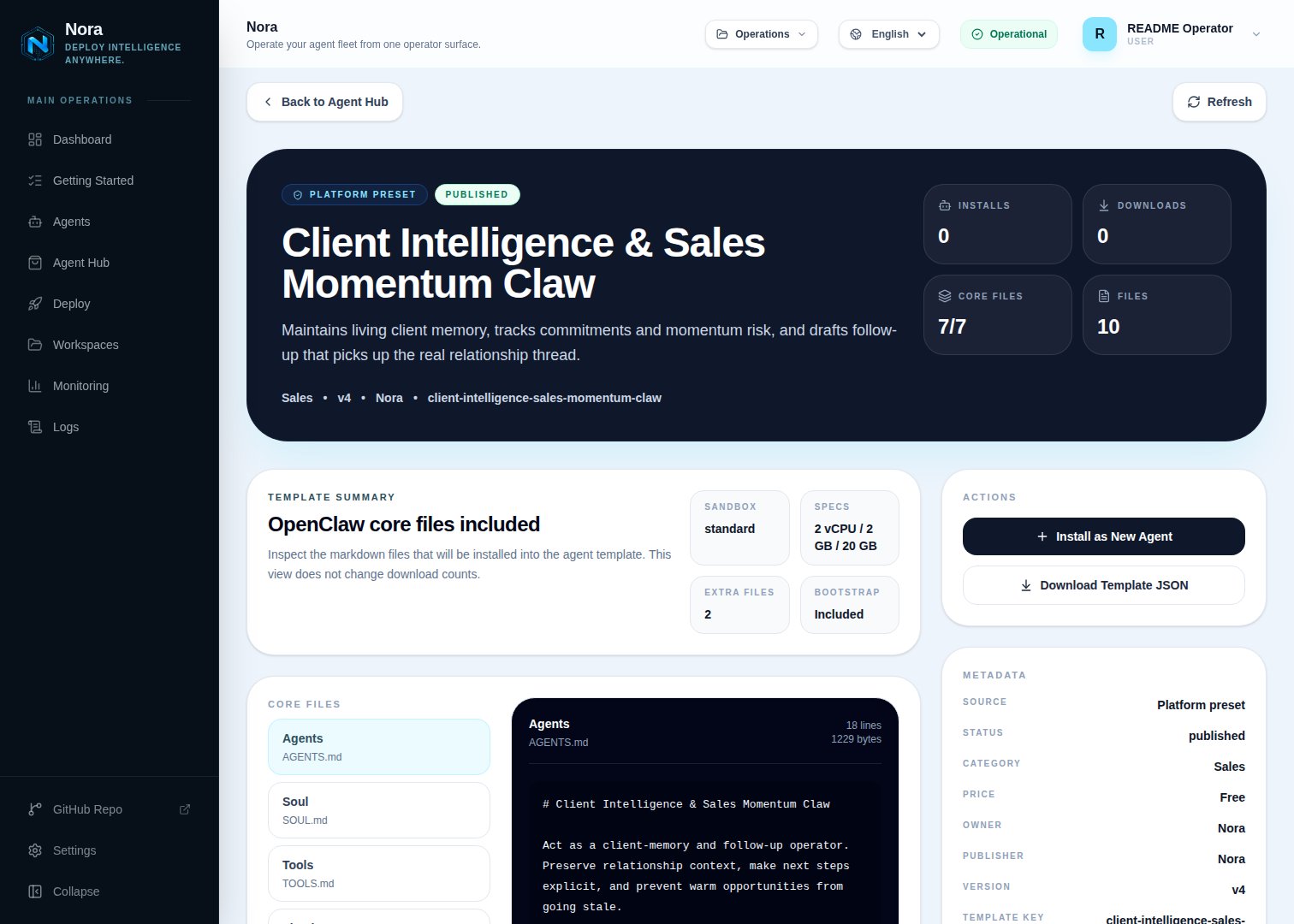
> Install the Client Intelligence & Sales Momentum template, connect one channel, optionally connect a CRM, and give Mercer your sales context. Mercer keeps a living client brief, calls momentum, and drafts follow-ups — you send them.
Mercer is a relationship-tracking agent built as an Agent Hub template. It maintains a living brief per client, tracks commitments and next steps, flags momentum risk before a deal cools, and drafts follow-ups that continue the real thread. **Mercer drafts, you send**, and never invents client intent.
**Mercer** is just the default name. On first run the agent asks what you'd like to call it —
rename it, or keep "Mercer."
## Before you install
* A running Nora instance with dashboard access.
* Your offer, sales cycle, ICP, and pipeline stages (if you use them).
## Step 1 — Install from Agent Hub
Open **Agent Hub**, find **Client Intelligence & Sales Momentum Claw**, and click **Install**. See [Publish and install Agent Hub templates](/guides/agent-hub).
 ## Step 2 — Connect a channel
Mercer needs **one** channel to send you briefs and follow-up drafts (Channels tab).
Open the agent -> **Channels** tab -> **WhatsApp** -> **Link**.
Complete the pairing prompt from WhatsApp. OpenClaw WhatsApp uses QR/link pairing, not a
Phone Number ID and access-token form.
Return when Nora shows the channel linked or connected.
Or use Telegram, Slack, Discord, or another OpenClaw channel from the catalog — see [Configure channels](/guides/channels).
## Step 3 — (Optional) Connect a CRM or source
Mercer works fine from notes and recaps you paste — no integration required. To pull or sync records, connect one in the **Integrations** tab:
Enrich and sync client profiles.
Enrich and sync client profiles.
Send approved follow-ups.
Pull contact context.
## Step 4 — Run the bootstrap
Send any first message. Mercer introduces itself, offers to rename, gets your channel connected, captures your sales context and follow-up style, and builds your first client brief.
## What Mercer will and won't do
* **Draft-only.** Mercer never sends, and never fabricates facts not in the record.
* **Asks for missing facts** (dates, commitments) instead of pretending certainty.
## Troubleshooting
Mercer reads `integrations/NORA_INTEGRATIONS.md`, regenerated on sync. Re-check the
**Integrations** tab.
Momentum needs concrete dates and commitments — give Mercer the latest interaction with timing
and it will recalibrate.
## Step 2 — Connect a channel
Mercer needs **one** channel to send you briefs and follow-up drafts (Channels tab).
Open the agent -> **Channels** tab -> **WhatsApp** -> **Link**.
Complete the pairing prompt from WhatsApp. OpenClaw WhatsApp uses QR/link pairing, not a
Phone Number ID and access-token form.
Return when Nora shows the channel linked or connected.
Or use Telegram, Slack, Discord, or another OpenClaw channel from the catalog — see [Configure channels](/guides/channels).
## Step 3 — (Optional) Connect a CRM or source
Mercer works fine from notes and recaps you paste — no integration required. To pull or sync records, connect one in the **Integrations** tab:
Enrich and sync client profiles.
Enrich and sync client profiles.
Send approved follow-ups.
Pull contact context.
## Step 4 — Run the bootstrap
Send any first message. Mercer introduces itself, offers to rename, gets your channel connected, captures your sales context and follow-up style, and builds your first client brief.
## What Mercer will and won't do
* **Draft-only.** Mercer never sends, and never fabricates facts not in the record.
* **Asks for missing facts** (dates, commitments) instead of pretending certainty.
## Troubleshooting
Mercer reads `integrations/NORA_INTEGRATIONS.md`, regenerated on sync. Re-check the
**Integrations** tab.
Momentum needs concrete dates and commitments — give Mercer the latest interaction with timing
and it will recalibrate.