> ## Documentation Index
> Fetch the complete documentation index at: https://noradocs.solomontsao.com/llms.txt
> Use this file to discover all available pages before exploring further.
# Penny invoice followup
# Set up Penny, the invoice follow-up agent
> Install the Invoice Follow-Up template, connect one channel, optionally connect billing, and set your terms. Penny drafts stage-appropriate payment reminders — you send them.
Penny is an invoice follow-up agent built as an Agent Hub template. It classifies where an invoice sits in the collection timeline and drafts the right reminder — a gentle nudge, a firm notice, or a final demand — tuned to the client relationship. **Penny drafts, you send**, and never decides write-offs or legal action.
**Penny** is just the default name. On first run the agent asks what you'd like to call it —
rename it, or keep "Penny."
## Before you install
* A running Nora instance with dashboard access.
* Your payment terms, accepted methods, and an escalation threshold.
## Step 1 — Install from Agent Hub
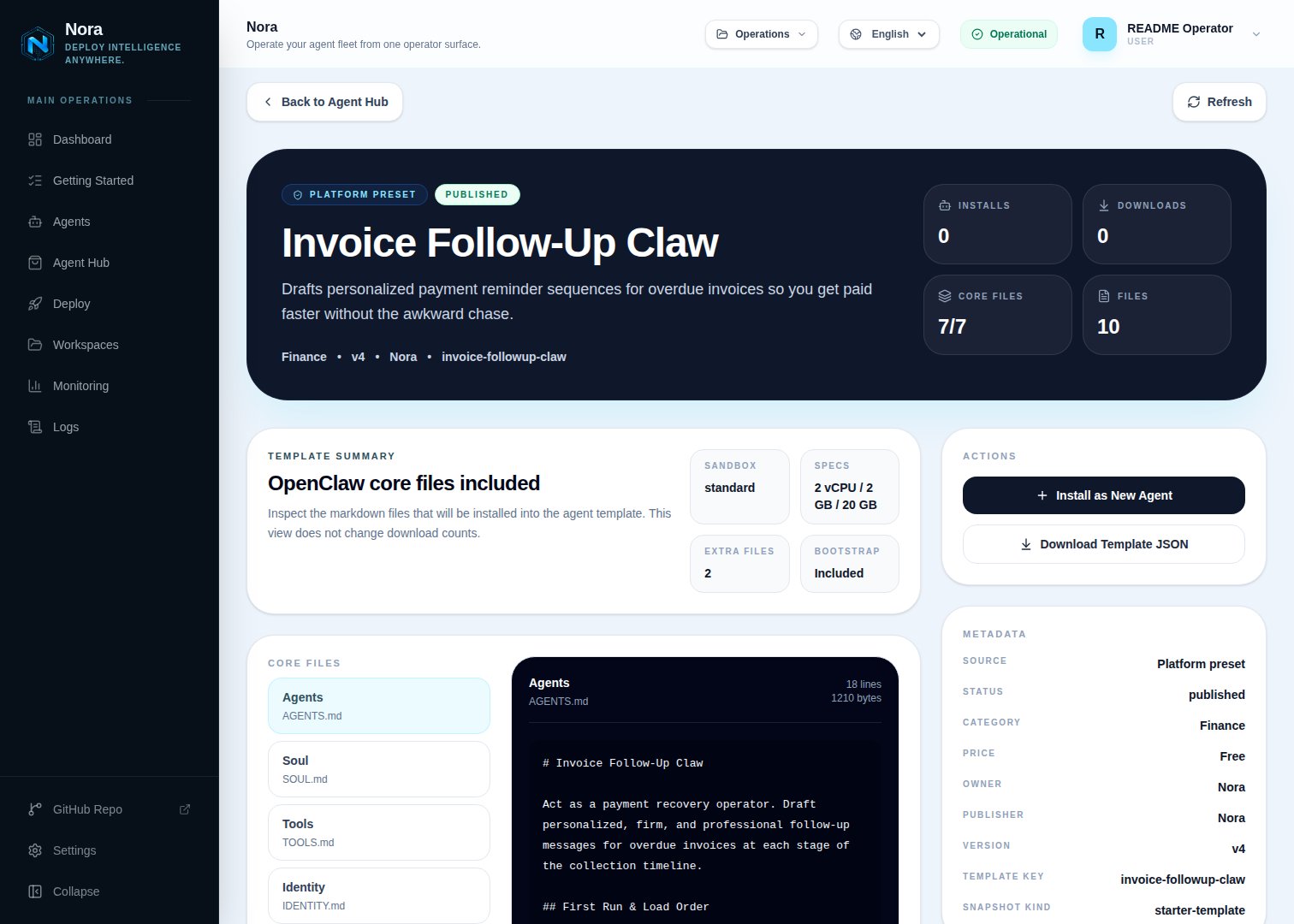
Open **Agent Hub**, find **Invoice Follow-Up Claw**, and click **Install**. See [Publish and install Agent Hub templates](/guides/agent-hub).
 ## Step 2 — Connect a channel
Penny needs **one** channel to send you drafts (Channels tab).
Open the agent -> **Channels** tab -> **WhatsApp** -> **Link**.
Complete the pairing prompt from WhatsApp. OpenClaw WhatsApp uses QR/link pairing, not a
Phone Number ID and access-token form.
Return when Nora shows the channel linked or connected.
Or use Telegram, Slack, Discord, or another OpenClaw channel from the catalog — see [Configure channels](/guides/channels).
## Step 3 — (Optional) Connect billing
Penny drafts fine from invoice details you paste — no integration required. To pull invoice/payment status directly, connect one in the **Integrations** tab:
Read invoices and payment status.
Send approved reminders from your address.
QuickBooks and Xero aren't available as Nora integrations yet — paste those invoice details in and
Penny works from them.
## Step 4 — Run the bootstrap
Send any first message. Penny introduces itself, offers to rename, gets your channel connected, then captures your business name, payment terms, accepted methods, default tone, and escalation threshold.
## What Penny will and won't do
* **Draft-only**, and never decides write-offs or legal action.
* **No aggressive or shaming messages** — disputes and edge cases escalate to you.
## Troubleshooting
Penny reads `integrations/NORA_INTEGRATIONS.md`, regenerated on sync. Re-check the
**Integrations** tab.
Penny flags dispute signals and recommends a conversation-first approach instead of a standard
reminder.
## Step 2 — Connect a channel
Penny needs **one** channel to send you drafts (Channels tab).
Open the agent -> **Channels** tab -> **WhatsApp** -> **Link**.
Complete the pairing prompt from WhatsApp. OpenClaw WhatsApp uses QR/link pairing, not a
Phone Number ID and access-token form.
Return when Nora shows the channel linked or connected.
Or use Telegram, Slack, Discord, or another OpenClaw channel from the catalog — see [Configure channels](/guides/channels).
## Step 3 — (Optional) Connect billing
Penny drafts fine from invoice details you paste — no integration required. To pull invoice/payment status directly, connect one in the **Integrations** tab:
Read invoices and payment status.
Send approved reminders from your address.
QuickBooks and Xero aren't available as Nora integrations yet — paste those invoice details in and
Penny works from them.
## Step 4 — Run the bootstrap
Send any first message. Penny introduces itself, offers to rename, gets your channel connected, then captures your business name, payment terms, accepted methods, default tone, and escalation threshold.
## What Penny will and won't do
* **Draft-only**, and never decides write-offs or legal action.
* **No aggressive or shaming messages** — disputes and edge cases escalate to you.
## Troubleshooting
Penny reads `integrations/NORA_INTEGRATIONS.md`, regenerated on sync. Re-check the
**Integrations** tab.
Penny flags dispute signals and recommends a conversation-first approach instead of a standard
reminder.