> ## Documentation Index
> Fetch the complete documentation index at: https://noradocs.solomontsao.com/llms.txt
> Use this file to discover all available pages before exploring further.
# Sentry communication intelligence
# Set up Sentry, the communication-intelligence agent
> Install the Communication Intelligence template, connect one channel to reach you, point Sentry at the chats to watch, and set your trigger rules. Sentry stays quiet by default and escalates only what matters.
Sentry is a communication-triage agent built as an Agent Hub template. It watches the chats you point it at, stays silent on the noise, and surfaces only what needs you — direct mentions, real asks, decisions, deadlines, and the topics you care about.
**Sentry** is just the default name. On first run the agent asks what you'd like to call it —
rename it, or keep "Sentry."
## Two different connections
Sentry uses two separate things — don't confuse them:
* **The channel that reaches you** (Channels tab) — how Sentry escalates to you.
* **The sources it monitors** — the chats it reads (live via Integrations, or imported logs).
## Step 1 — Install from Agent Hub
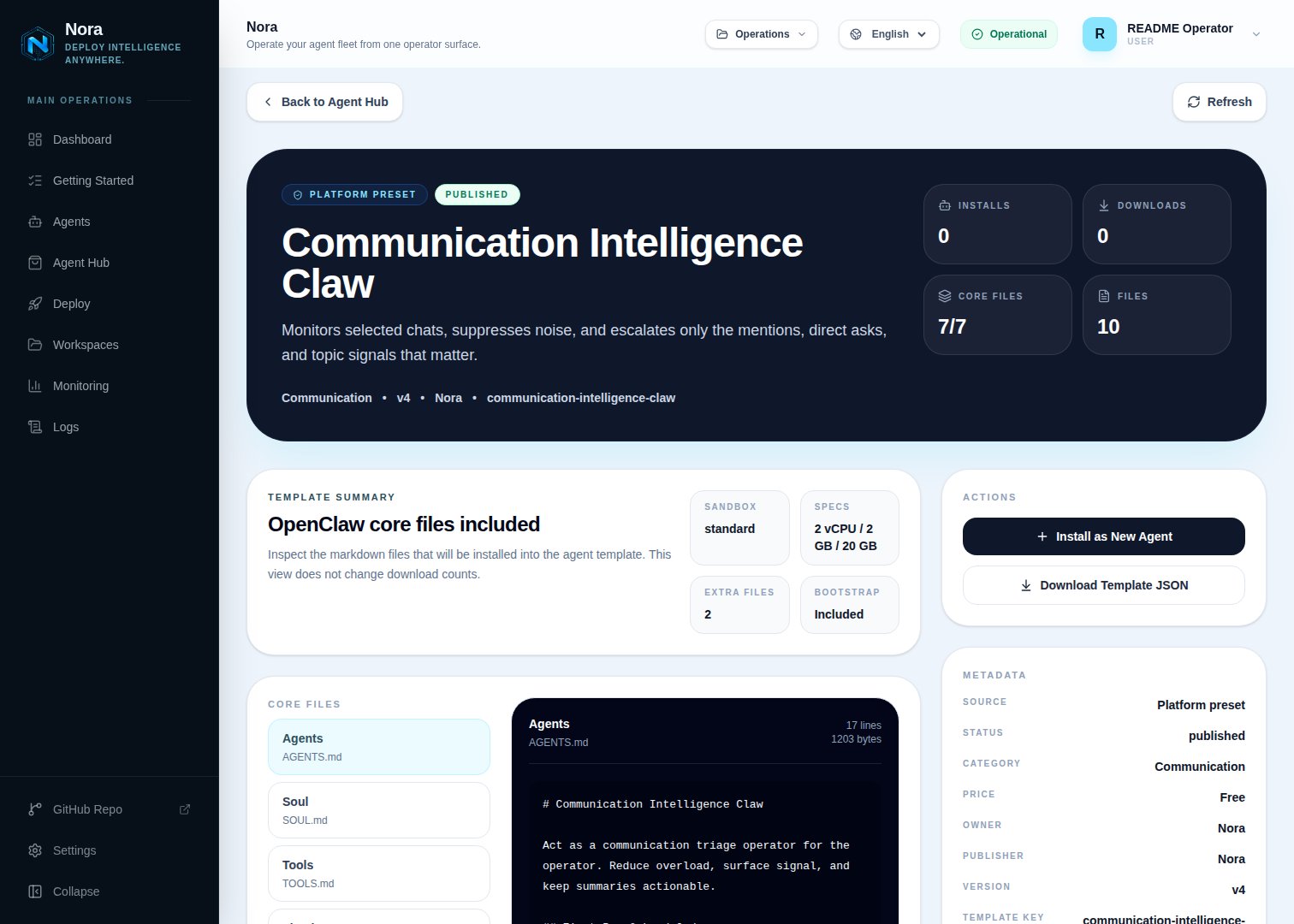
Open **Agent Hub**, find **Communication Intelligence Claw**, and click **Install**. See [Publish and install Agent Hub templates](/guides/agent-hub).
 ## Step 2 — Connect a channel to reach you
Sentry needs **one** channel to escalate to you (Channels tab).
Open the agent -> **Channels** tab -> **WhatsApp** -> **Link**.
Complete the pairing prompt from WhatsApp. OpenClaw WhatsApp uses QR/link pairing, not a
Phone Number ID and access-token form.
Return when Nora shows the channel linked or connected.
Or use Telegram, Slack, Discord, or another OpenClaw channel from the catalog — see [Configure channels](/guides/channels).
## Step 3 — Point Sentry at what to watch
Two ways, mix as needed:
* **Live monitoring** — connect a source in the **Integrations** tab so Sentry reads it directly:
Monitor channels/DMs.
Monitor threads.
* **Imported logs** — paste or import chat exports (WhatsApp/WeChat/group logs); no integration required.
## Step 4 — Run the bootstrap
Send any first message. Sentry introduces itself, offers to rename, gets your reach-me channel connected, helps you point it at sources, then captures the people, channels, topics, and trigger rules that decide when it breaks silence.
## What Sentry will and won't do
* **Silence by default** — it filters attention, it doesn't amplify chatter.
* **Grounded** — never fabricates context; flags what still needs confirmation.
## Troubleshooting
Sentry reads `integrations/NORA_INTEGRATIONS.md`, regenerated on sync. Re-check the
**Integrations** tab.
Tune the trigger rules — key people, in-scope channels, topics, and what's always noise. Sentry
escalates only when a trigger fires.
## Step 2 — Connect a channel to reach you
Sentry needs **one** channel to escalate to you (Channels tab).
Open the agent -> **Channels** tab -> **WhatsApp** -> **Link**.
Complete the pairing prompt from WhatsApp. OpenClaw WhatsApp uses QR/link pairing, not a
Phone Number ID and access-token form.
Return when Nora shows the channel linked or connected.
Or use Telegram, Slack, Discord, or another OpenClaw channel from the catalog — see [Configure channels](/guides/channels).
## Step 3 — Point Sentry at what to watch
Two ways, mix as needed:
* **Live monitoring** — connect a source in the **Integrations** tab so Sentry reads it directly:
Monitor channels/DMs.
Monitor threads.
* **Imported logs** — paste or import chat exports (WhatsApp/WeChat/group logs); no integration required.
## Step 4 — Run the bootstrap
Send any first message. Sentry introduces itself, offers to rename, gets your reach-me channel connected, helps you point it at sources, then captures the people, channels, topics, and trigger rules that decide when it breaks silence.
## What Sentry will and won't do
* **Silence by default** — it filters attention, it doesn't amplify chatter.
* **Grounded** — never fabricates context; flags what still needs confirmation.
## Troubleshooting
Sentry reads `integrations/NORA_INTEGRATIONS.md`, regenerated on sync. Re-check the
**Integrations** tab.
Tune the trigger rules — key people, in-scope channels, topics, and what's always noise. Sentry
escalates only when a trigger fires.