> ## Documentation Index
> Fetch the complete documentation index at: https://noradocs.solomontsao.com/llms.txt
> Use this file to discover all available pages before exploring further.
# Signal market signal
# Set up Signal, the market-signal content agent
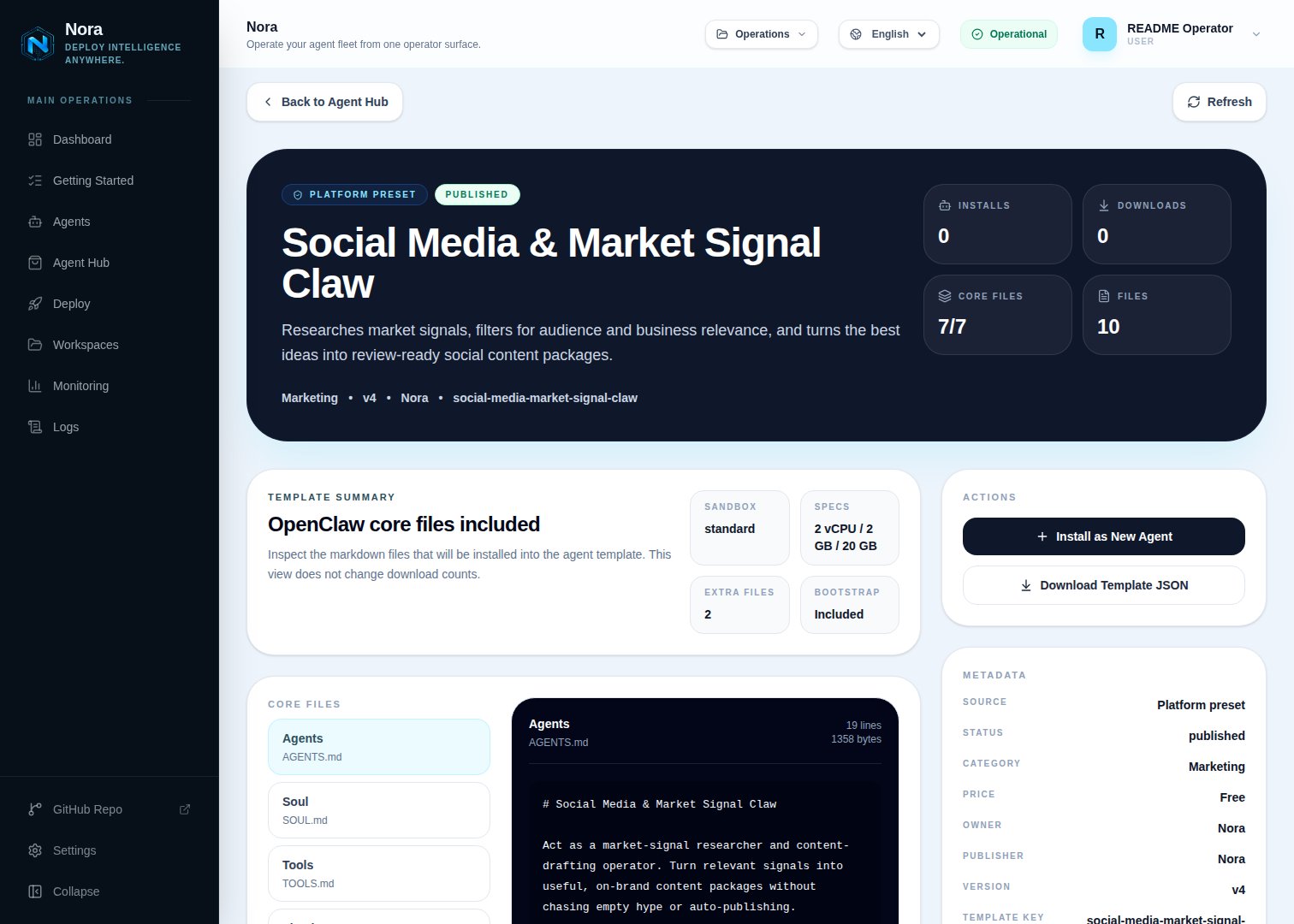
> Install the Social Media & Market Signal template, connect one channel, optionally connect social accounts, and define your brand and signal rules. Signal researches trends and drafts review-ready content packages — you approve and publish.
Signal is a research-and-drafting agent built as an Agent Hub template. It scans for trends and conversations in your space, filters out the hype that doesn't fit your audience, and turns the signals that matter into review-ready post packages — angle, hook, draft, hashtags, visual direction. **Nothing is auto-published.**
**Signal** is just the default name. On first run the agent asks what you'd like to call it —
rename it, or keep "Signal."
## Before you install
* A running Nora instance with dashboard access.
* Your brand positioning, audience, platforms, content pillars, and what counts as a useful signal.
## Step 1 — Install from Agent Hub
Open **Agent Hub**, find **Social Media & Market Signal Claw**, and click **Install**. See [Publish and install Agent Hub templates](/guides/agent-hub).
 ## Step 2 — Connect a channel
Signal needs **one** channel to send you briefs and drafts (Channels tab) — separate from the social platforms you publish to.
Open the agent -> **Channels** tab -> **WhatsApp** -> **Link**.
Complete the pairing prompt from WhatsApp. OpenClaw WhatsApp uses QR/link pairing, not a
Phone Number ID and access-token form.
Return when Nora shows the channel linked or connected.
Or use Telegram, Slack, Discord, or another OpenClaw channel from the catalog — see [Configure channels](/guides/channels).
## Step 3 — (Optional) Connect social accounts
Signal researches and drafts on its own — no integration required. To publish the packages you approve (still human-gated), connect one in the **Integrations** tab:
Post approved drafts.
Post approved drafts.
Insights (read-oriented).
Page posts.
Store the content calendar.
## Step 4 — Run the bootstrap
Send any first message. Signal introduces itself, offers to rename, gets your channel connected, then captures your brand, audience, platforms, voice, and the rules for what counts as a useful signal.
## What Signal will and won't do
* **Never auto-publishes** — every package stays in review until you approve.
* **Says no to weak signals** rather than manufacturing content from thin trends.
## Troubleshooting
Signal reads `integrations/NORA_INTEGRATIONS.md`, regenerated on sync. Re-check the
**Integrations** tab. Publishing still requires your approval even when connected.
Tighten the signal rules and always-skip list in setup — Signal filters against your audience
and brand fit.
## Step 2 — Connect a channel
Signal needs **one** channel to send you briefs and drafts (Channels tab) — separate from the social platforms you publish to.
Open the agent -> **Channels** tab -> **WhatsApp** -> **Link**.
Complete the pairing prompt from WhatsApp. OpenClaw WhatsApp uses QR/link pairing, not a
Phone Number ID and access-token form.
Return when Nora shows the channel linked or connected.
Or use Telegram, Slack, Discord, or another OpenClaw channel from the catalog — see [Configure channels](/guides/channels).
## Step 3 — (Optional) Connect social accounts
Signal researches and drafts on its own — no integration required. To publish the packages you approve (still human-gated), connect one in the **Integrations** tab:
Post approved drafts.
Post approved drafts.
Insights (read-oriented).
Page posts.
Store the content calendar.
## Step 4 — Run the bootstrap
Send any first message. Signal introduces itself, offers to rename, gets your channel connected, then captures your brand, audience, platforms, voice, and the rules for what counts as a useful signal.
## What Signal will and won't do
* **Never auto-publishes** — every package stays in review until you approve.
* **Says no to weak signals** rather than manufacturing content from thin trends.
## Troubleshooting
Signal reads `integrations/NORA_INTEGRATIONS.md`, regenerated on sync. Re-check the
**Integrations** tab. Publishing still requires your approval even when connected.
Tighten the signal rules and always-skip list in setup — Signal filters against your audience
and brand fit.