
Add and sync LLM provider keys in Nora
Save, manage, and sync LLM provider API keys to running agents in Nora. Covers adding keys, setting a default provider, and using the Sync button.Nora stores your LLM provider API keys centrally and injects them into agent containers at deployment time or on demand via the Sync button. Keys are encrypted at rest using AES-256-GCM and never returned in plaintext through the API — only a masked preview (first four and last four characters) is shown in the dashboard. This page explains how to add a provider key, set a default, sync keys to a running agent, and remove a key you no longer need.
Supported providers
Nora supports the following LLM providers:NVIDIA is required for NemoClaw agents. See Run secure agents with NemoClaw
sandboxes for details.
Microsoft Foundry requires more than an API key. Enter your Foundry resource base URL, for example
https://<resource>.services.ai.azure.com/openai/v1/, and set the model field to the exact Azure deployment name, such as gpt-5.5-1. Deployment names are created in your Foundry resource, so do not trim -1 or replace the value with the base model id.Nora also ships a built-in Demo provider (
Demo (built-in, no key required)) that needs no API key. It runs a deterministic stub served by the control plane itself (model nora-demo-1). On installations with the local Docker target enabled, use Launch local Docker demo — no API key in the first-run flow; Nora creates the provider and demo agent atomically. The lower-level POST /api/llm-providers request with {"provider":"demo"} only creates the provider and does not make the one-click Docker activation available on Kubernetes-only deployments. Replace the demo with a real provider before production workloads.Add a provider key
1
Navigate to Settings
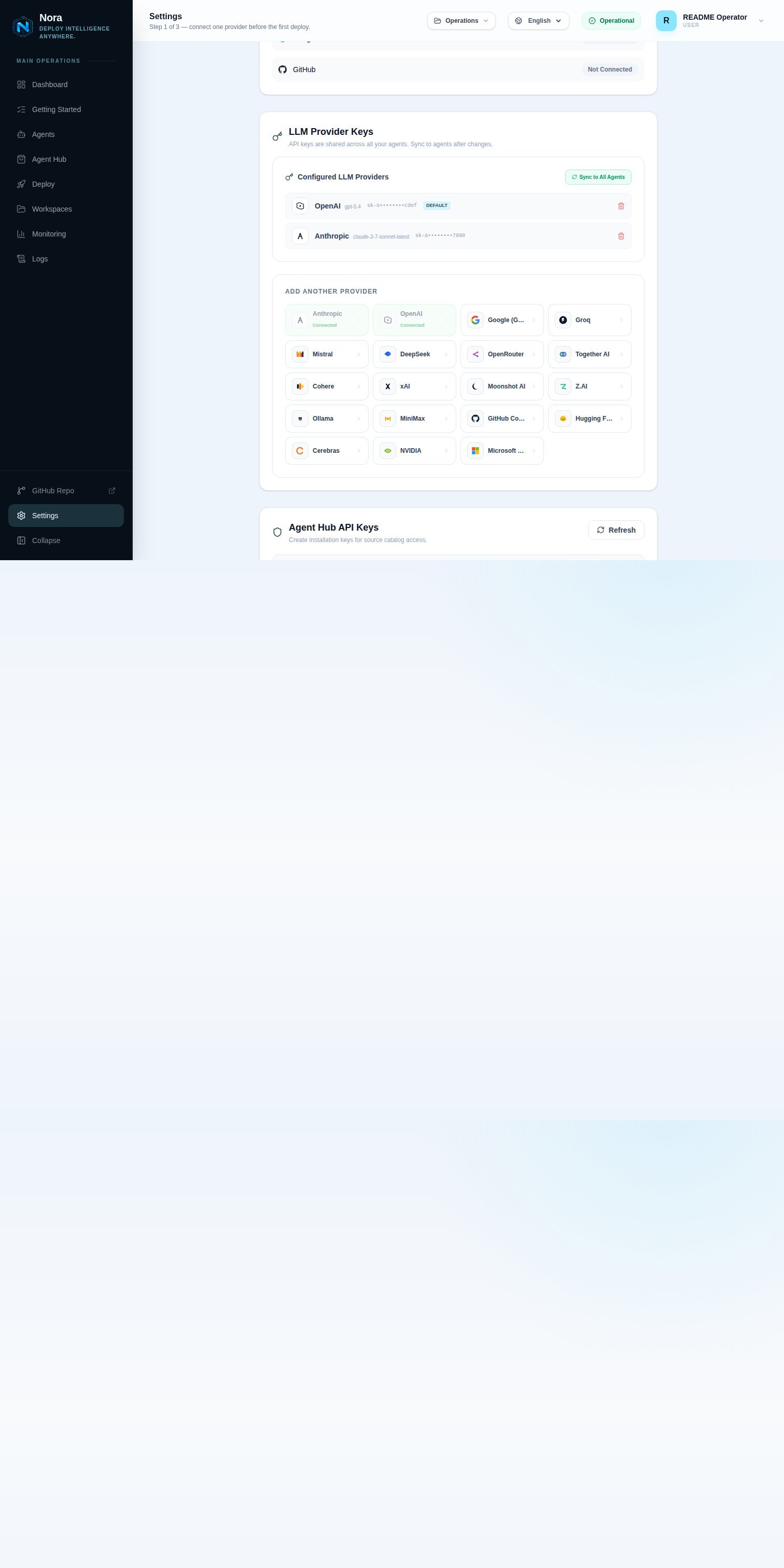
Open Settings from the sidebar. The provider keys section lists all keys you have saved.
2
Open the add provider form
Click Add Provider (or the equivalent button in your dashboard). A form appears with three fields.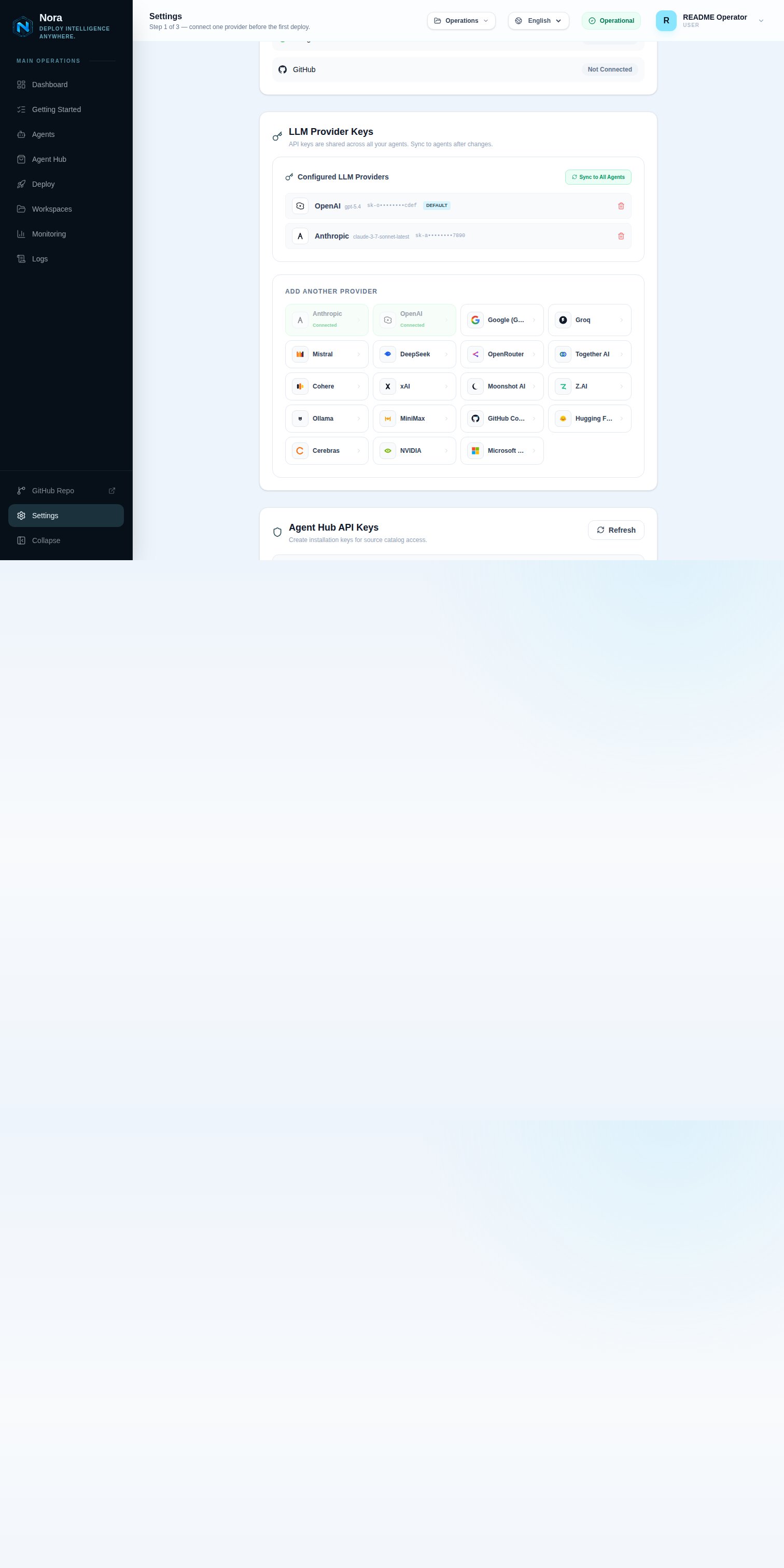
3
Select the provider
Choose a provider from the dropdown. The list contains all supported providers. The correct
environment variable for that provider is shown for reference.
4
Enter the API key
Paste your API key into the API Key field. This value is required.
5
Optionally pin a model
If you want agents using this provider to default to a specific model, enter the model ID in the
Model field. You can leave this blank to let the agent runtime select the model.
6
Save the key
Click Save. Nora encrypts the key with AES-256-GCM before storing it. The dashboard shows a masked preview such as
sk-a••••••••1234.Set a default provider
To change which provider Nora uses by default when syncing keys to agents:- Find the provider entry in Settings.
- Click the Set as default control (star icon or toggle, depending on your dashboard version).
Sync keys to a running agent
Adding or updating a key in Settings does not automatically update running agents. You need to sync the keys explicitly:- Open the agent’s detail page.
- Click the Sync button in the provider keys section.
Keys are synced encrypted in transit and injected directly into the container environment. They
are not written to disk on the host.
Update a provider key
To replace a key (for example, after a rotation):- Find the provider in Settings.
- Click Edit or the pencil icon.
- Enter the new API key in the API Key field.
- Optionally update the pinned model.
- Click Save.
Remove a provider key
- Find the provider in Settings.
- Click Remove or the trash icon next to the key.
- Confirm the deletion.