
Get started with Nora: prove the operator loop on local Docker
Install Nora with the local Docker target, launch the zero-key demo agent, and validate chat, logs, metrics, and a live terminal before connecting a paid model provider.This guide takes you from a fresh machine to a running, validated agent runtime. On a Docker/Compose installation, the fastest evaluation uses Nora’s built-in deterministic demo provider, so the first proof needs no external API key and creates no model bill. Kubernetes-only installations skip the one-click demo and start with a configured model provider. After the operator loop is clear, you can connect a real provider and deploy OpenClaw or Hermes for a live workload.
The installer can install Docker, Docker Compose 2.24.4+, Git, and OpenSSL for you if they are not
already present on your machine. Standalone
docker-compose v1 is unsupported. You need macOS
12+, Linux (Ubuntu 20.04+, Debian 11+, or Fedora 38+), or Windows 10+ with WSL2, plus admin or
sudo access.1
Install Nora
Run the one-line installer for your platform, or bring up the stack manually with Docker Compose if you prefer full control over the setup.The installer clones the repository, verifies Docker and Docker Compose, generates platform secrets, walks you through access mode, platform mode, runtime/backend choices, and optional bootstrap admin creation, then starts the full Nora stack.If you prefer to configure things manually, clone the repo and bring up the stack yourself:When the installer or Docker Compose finishes, it prints the base URL it configured. Local mode uses
http://localhost:8080 by default, but the installer automatically offers another free web port such as 8081 if 8080 is already in use.2
Open the dashboard
Navigate to the Nora dashboard in your browser. In local mode, use the URL printed by setup. The default URLs are: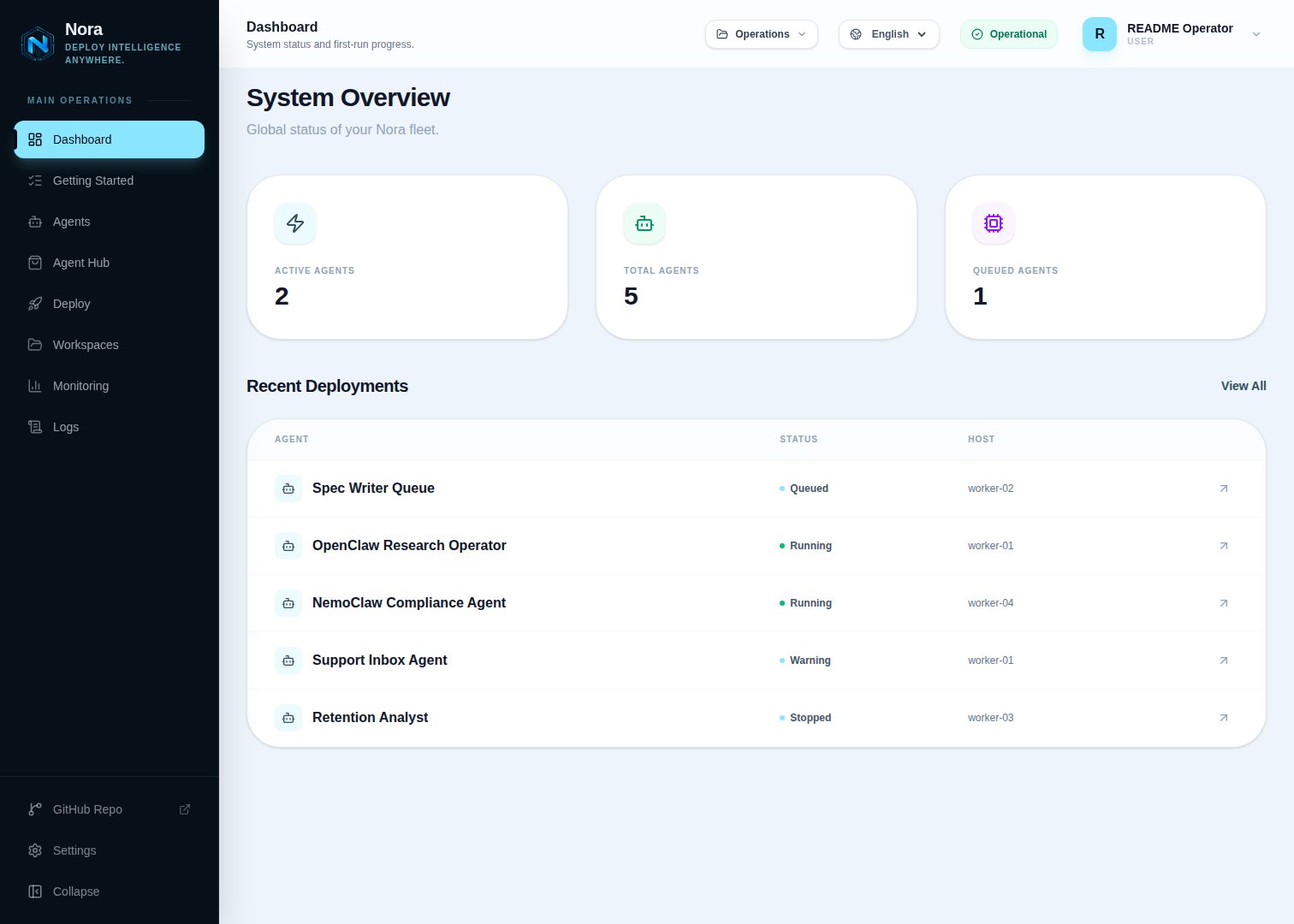
If setup selected another port, replace
8080 with that port. If you configured a public domain during setup, the same paths apply on your origin — for example, https://app.example.com/app/dashboard.3
Create an account or log in
Go to the printed
/signup URL and create your operator account. On a brand-new self-hosted
instance with no users yet, the signup page runs in first-run claim mode — it shows “Claim this
Nora server” and the first account you create becomes the platform admin. Hosted PaaS requires a
pre-seeded bootstrap administrator instead. After you finish, you land on the Getting Started page
(/app/getting-started).If you set DEFAULT_ADMIN_EMAIL and DEFAULT_ADMIN_PASSWORD during setup, that account is already
created — go to /login and use those credentials instead.4
Choose the first-proof path
When
/api/config/platform reports capabilities.localDockerDemo.enabled: true, click Launch local Docker demo — no API key on Getting Started. Nora enables its built-in deterministic provider and deploys a demo agent in one action. If the page reports that the local Docker demo is unavailable, add a real provider and deploy to one of the targets enabled by your operator.For a live workload, open Settings and add an API key for a supported provider such as Anthropic, OpenAI, or Google. Nora encrypts provider keys at rest with AES-256-GCM and stores them centrally so you can sync them to running agents.5
Deploy your first agent
If you chose the demo path, the Getting Started action performs this step automatically and sends you to the new agent. Continue to Validate the agent below.If you connected a real provider, go to Deploy and fill in the deployment form: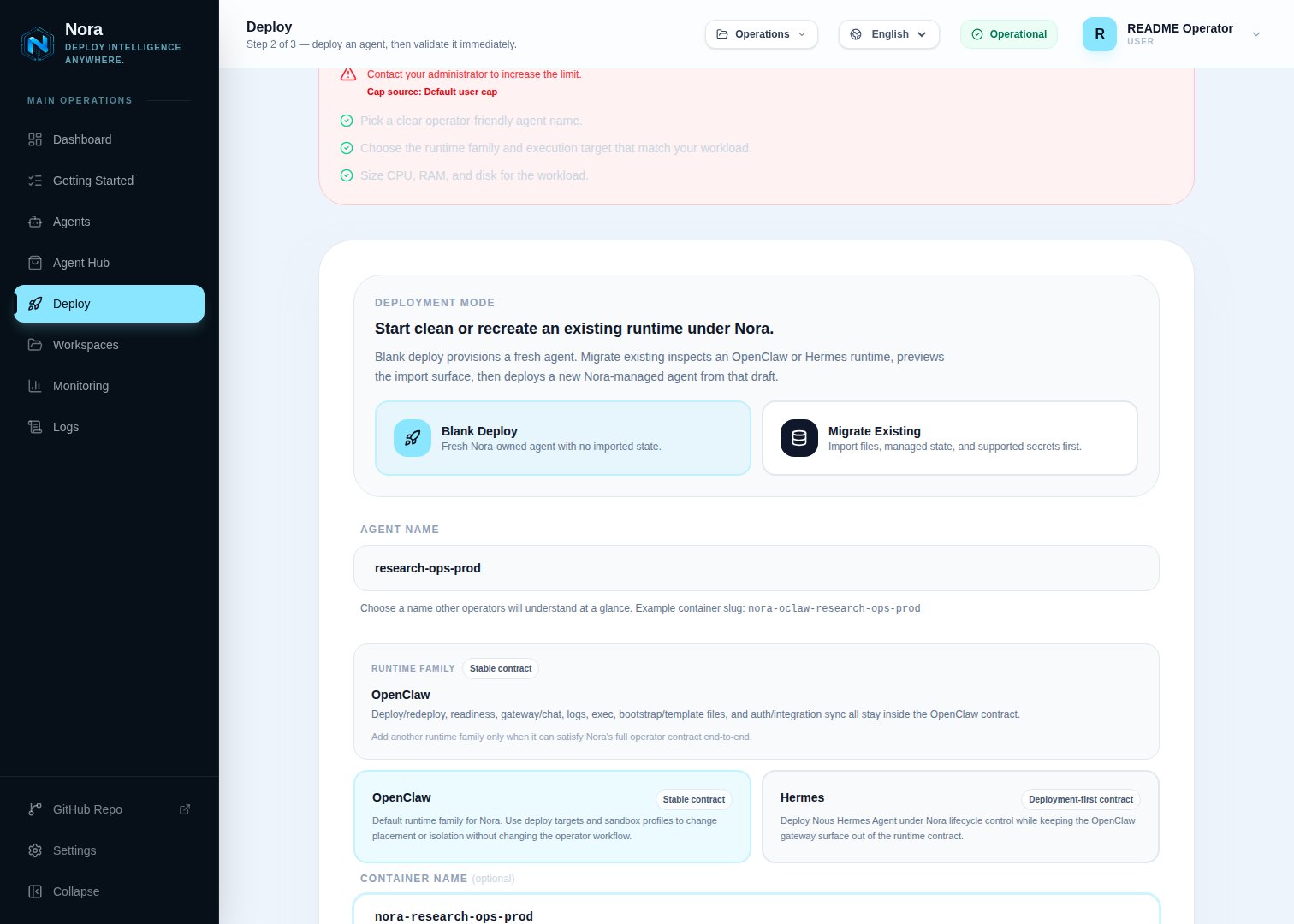
- Enter an agent name
- Choose the runtime family, execution target, and sandbox when the selected target offers one
- Set CPU, RAM, and disk resource limits
- For OpenClaw, click Next: Choose Skills, review the optional ClawHub skills, then click Deploy Agent & Open Validation
- For runtime paths without the skills step, click Deploy Agent
OpenClaw is the best-supported runtime today and the recommended choice for your first deployment.
6
Validate the agent
Open the agent detail page and work through the following checks: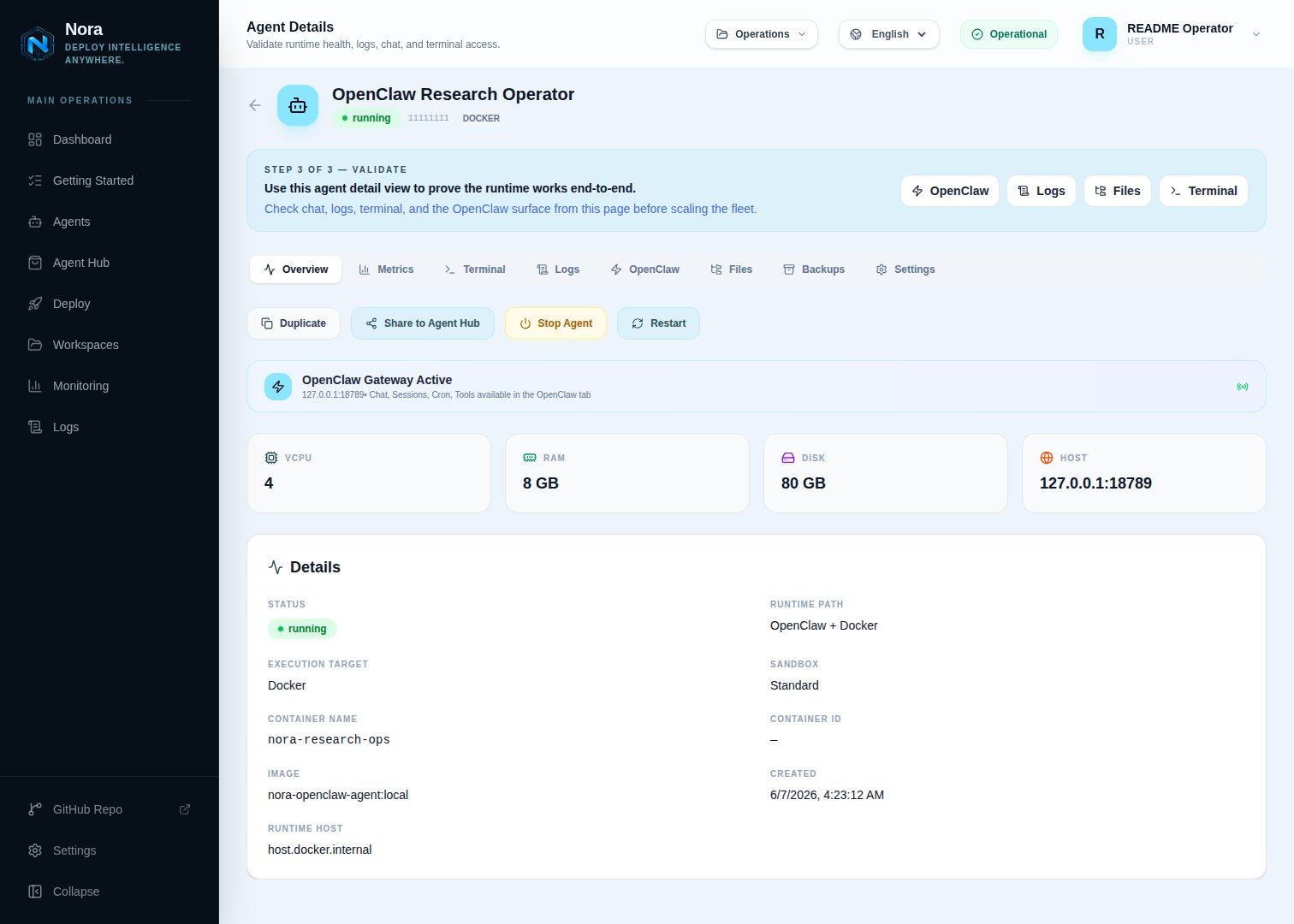
- Confirm the agent shows a running status
- Click Sync Keys if you need to push your provider keys to the running runtime
- Open Chat and send a test message to confirm the LLM connection is working
- Click Logs and inspect the output to confirm the runtime is healthy
- Open Terminal to confirm you have an interactive session
Star Nora on GitHub
If this guide helped you get your first agent running, a star helps other operators discover Nora.
What’s next
Deploy an agent
Learn how to configure runtimes, resource limits, and deployment options in depth.
Manage LLM providers
Add more providers, rotate keys, and control which agents have access to each key.
Add a Remote Docker host
Connect a private Docker server, VPS, or cloud VM and validate the full remote deployment path.
Connect integrations
Wire GitHub, Slack, Jira, AWS, and other tools to your running agents.
Monitor operations
Track agent health, LLM usage, costs, and runtime activity in real time.
Contribute to Nora
Find focused contribution areas, development commands, and the expected pull-request handoff.
Join the community
Ask setup questions, share what you deployed, or align on a larger feature before building it.