

Set up Iris, the Instagram manager
Install the Iris Agent Hub template, connect Instagram Graph, connect one channel, and teach Iris your brand. Iris plans your calendar and drafts captions, hooks, hashtags, and reply queues — you approve and publish everything.Iris is a single-account Instagram operator built as an Agent Hub template. She plans a weekly content calendar, drafts captions and hashtag sets, prepares DM and comment replies for approval, watches trends in your niche, and compiles weekly performance reviews. Publishing stays manual by design — Iris drafts, you post, reply, and follow.
Before you install
1
A running Nora instance with dashboard access
You connect the integration and channel from the agent’s detail page, so you need
editor
access to the destination workspace.2
An Instagram Creator or Business account
Connected to a Facebook Page. Personal accounts can’t use the Instagram Graph API. You’ll need
an Access Token and the Business Account ID.
3
Your brand basics ready
Handle, niche, audience, three voice adjectives with a couple of examples, content pillars, and
hard nos. Iris turns these into
BRAND.md — her single most important file.Step 1 — Install Iris from Agent Hub
From the dashboard, open Agent Hub, find the Iris Instagram Manager listing (under the Built-in filter), and click Install. Pick a workspace and agent name. Nora materializes the template’s files into a new agent. See Publish and install Agent Hub templates for the general install flow.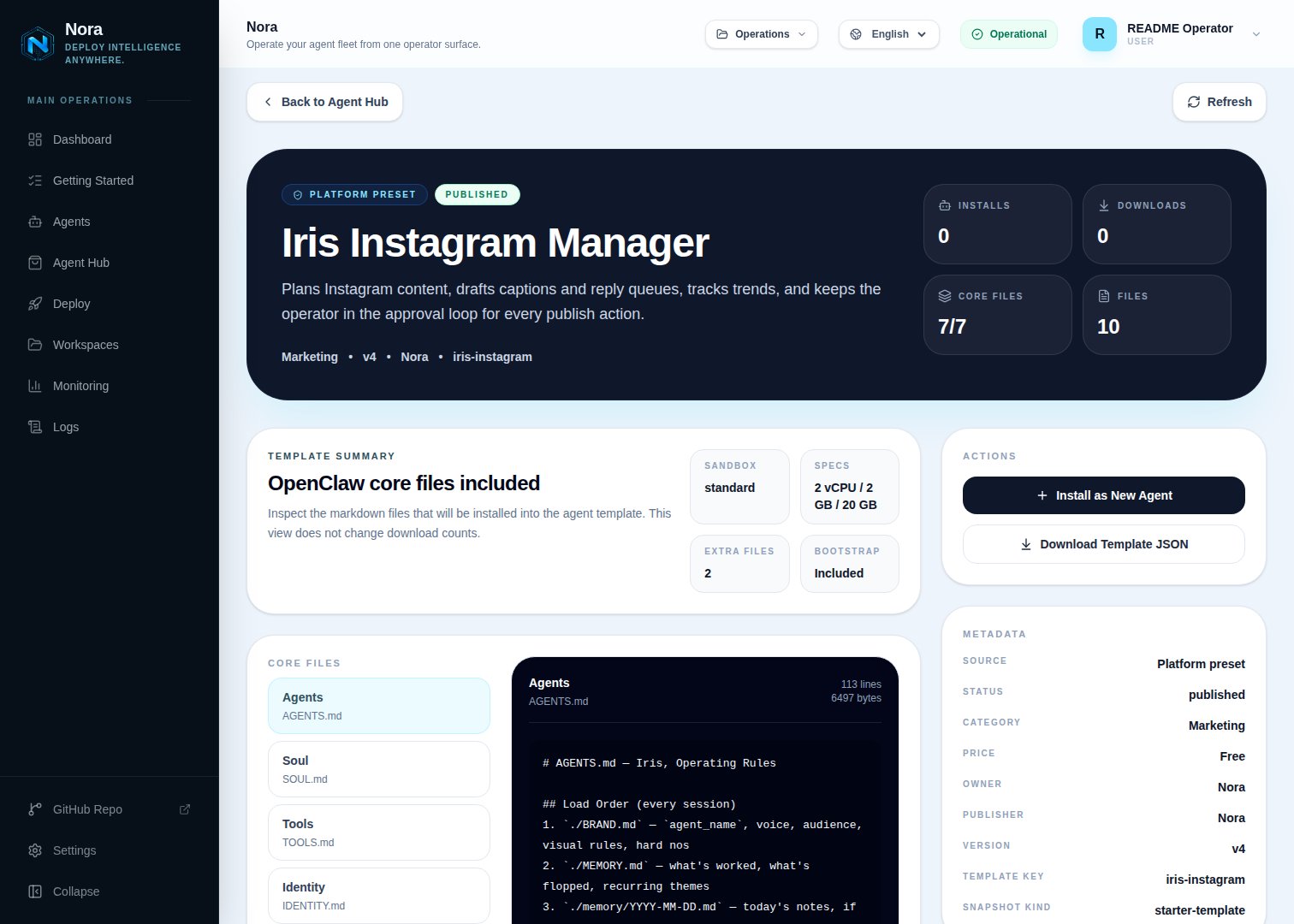
Agent Hub — Iris Instagram Manager template detail before installation
Step 2 — Connect Instagram
Open the agent → Integrations tab and connect Instagram Graph.Instagram Graph
Form-based connect: paste a long-lived Access Token and your Business Account ID
(Facebook Page ID optional). Requires a Creator or Business account with the
instagram_basic, instagram_content_publish, and
pages_show_list scopes.Iris reads insights, comments, and media through this integration. Without it she can still plan
and draft from your brand file — she just can’t pull live analytics. The API is read-oriented;
most operators do the final publish step in the Instagram app or Meta Business Suite.
integrations/NORA_INTEGRATIONS.md into the agent’s workspace and updates TOOLS.md. Iris reads that file to know what’s connected — you never edit it by hand.
Step 3 — Connect one channel
Iris needs one communication channel to reach you with rundowns, draft batches, and approval requests. This lives in the Channels tab — a different tab from Integrations. WhatsApp is the recommended example:1
Link WhatsApp in Nora
Open the agent -> Channels tab -> WhatsApp -> Link.
2
Scan the QR code
Complete the pairing prompt from WhatsApp. OpenClaw WhatsApp uses QR/link pairing, not a
Phone Number ID and access-token form.
3
Confirm the channel
Return when Nora shows the channel linked or connected.
Step 4 — Teach Iris your brand
Send any first message. Iris introduces herself, offers to rename, confirms your integration and channel are connected, then walks you throughBRAND.md:
- Your handle, niche, and account type
- Who follows you and the one reason they hit follow
- Three voice adjectives + “do sound like / do NOT sound like” examples
- Content pillars (the buckets most posts fit)
- Hard nos — topics, phrasings, or days that are off-limits
BRAND.md directly. This is the most important step — without a real brand file, captions come out generic. Iris reads it back for confirmation, then offers a first action: a week plan, test captions, or a trend scan.
What Iris will and won’t do
- Draft-only by design. Iris drafts captions, calendars, and replies; you publish, reply, and follow.
- No growth automation. Auto-follow, auto-like, auto-comment, and engagement pods are blocked on purpose — they get accounts action-blocked or shadowbanned.
- Approval every time. Every feed post, Story, Reel, comment, and DM is drafted for your review.
API limits
- Instagram Graph is restrictive. It gives insights, comment reads, and Content Publishing — but Stories, Reels publishing, and DM automation are limited or heavily rate-limited.
- Meta Business Suite is the easy path: Iris drafts the caption, hashtags, and visual brief; you upload and schedule the asset there.
- Drafting works without API access — only auto-pulled analytics are affected.
Troubleshooting
Iris says Instagram isn't connected, but I added it
Iris says Instagram isn't connected, but I added it
Iris reads
integrations/NORA_INTEGRATIONS.md, regenerated when integrations sync. Re-open the
Integrations tab to confirm Instagram Graph shows connected, then ask Iris to re-check.Instagram Graph rejects my token
Instagram Graph rejects my token
Confirm the account is a Creator or Business account linked to a Facebook Page, the token is
long-lived, and it carries the
instagram_basic, instagram_content_publish, and
pages_show_list scopes. See the Instagram integration guide.Captions feel generic / off-voice
Captions feel generic / off-voice
BRAND.md needs more signal — add “do sound like / do NOT sound like” examples and tighten the
hard nos. Iris reads it every session.